The best IPTV player apps do one job: they take the login details from your provider and turn them into a tidy channel list, a TV guide and an on-demand library. A player app does not include any channels itself, so the right choice depends on your device and how you like to browse. These seven are the ones UK viewers use most.
In This Guide
What Makes a Good IPTV Player App?
Before the list, here is what separates a good player from a frustrating one.
- Fast channel changes: zapping should feel close to normal television.
- A clear TV guide (EPG): now, next and the week ahead, laid out like a familiar grid.
- Favourites and search: essential when a line-up runs to thousands of channels.
- Both login types: support for Xtream Codes and M3U playlists. Our guide to M3U vs Xtream Codes explains the difference.
- Player settings: a choice of decoder and buffer size helps on slower connections.
The 7 Best IPTV Player Apps
1. TiviMate (Android TV and Firestick)
Widely regarded as the most polished player for big screens. The guide looks like a traditional set-top box and it is built for a remote control. The free version covers the basics; multiple playlists, catch-up and recording sit behind a paid upgrade. It is not available for iPhone, Samsung or LG.
2. IPTV Smarters Pro (most devices)
The all-rounder. It runs on Android, Firestick, iPhone, iPad and many Smart TVs, and the layout is simple enough for anyone in the house: Live TV, Films, Series. A sound first choice if you want the same app on every screen.
3. IBO Player (Samsung, LG and Android)
A popular option on Samsung and LG televisions, where fewer players are available. You link your playlist using the device ID shown on screen. It has a short free period, then a small one-off activation fee paid to the app’s developer.
4. Smart IPTV (Samsung and LG)
One of the longest-running Smart TV players, often called SIPTV. The design is plain, but it is light and dependable on older sets. Like IBO Player, it uses a device code and a one-off activation after the trial.
5. XCIPTV (Android and Firestick)
A clean, modern Android player with a good guide and two built-in video engines, which is useful if one struggles with a particular channel. A solid free alternative to TiviMate.
6. GSE Smart IPTV (iPhone, iPad and Apple TV)
A long-standing choice for Apple devices. It accepts both playlist formats, supports AirPlay and Chromecast, and has more settings than most people will ever need.
7. VLC Media Player (Windows, Mac and Linux)
The free, open-source VLC media player opens an M3U playlist directly. There is no TV guide to speak of, but for watching on a laptop it is quick, safe and costs nothing.
Which App for Which Device?
| Device | Start with | Alternative |
|---|---|---|
| Amazon Firestick | TiviMate | IPTV Smarters Pro |
| Android TV or box | TiviMate | XCIPTV |
| Samsung or LG Smart TV | IBO Player | Smart IPTV |
| iPhone, iPad, Apple TV | IPTV Smarters Pro | GSE Smart IPTV |
| Windows or Mac | VLC | IPTV Smarters Pro |
Free or Paid?
Free players are fine for testing and for many households they are all you need. Paying for a player makes sense when you want recording, catch-up, several playlists or a guide that the whole family finds easy. Remember that an app fee goes to the app developer and is separate from your television subscription.
How We Compared the Best IPTV Player Apps
Lists of the best IPTV player apps often read like adverts, so it is fair to explain what ours is based on. Each app was judged on the things that affect an ordinary evening in front of the television, not on the length of its feature list.
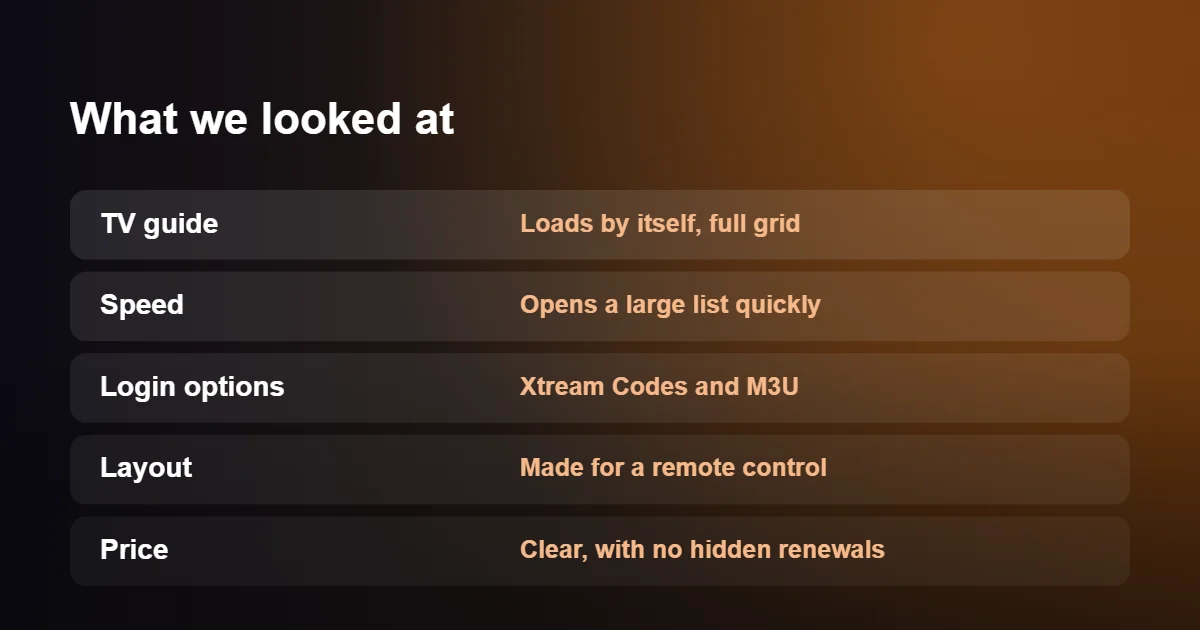
- The TV guide. Does it load without manual setup, show a full grid and stay accurate?
- Speed with a large list. A subscription can contain tens of thousands of channels and films. Some apps open such a list in seconds; others stall or close.
- Login options. Supporting Xtream Codes as well as M3U links means less typing and fewer errors.
- A layout made for a remote. Apps designed for touch screens are tiring to use from a sofa.
- Honest pricing. A clear free version or a one-off fee scores higher than a recurring charge hidden behind a trial.
No app wins on every count, which is why the best IPTV player apps for a Firestick are not the same as the best for a five-year-old Samsung television. The comparison below shows where each one is strong.
Best IPTV Player Apps Compared Side by Side
| App | Login types | How you pay |
|---|---|---|
| TiviMate | Xtream Codes, M3U, portal | Free version; premium unlocks extras |
| IPTV Smarters Pro | Xtream Codes, M3U | Free |
| IBO Player | M3U or Xtream Codes, added on its website | Trial, then a fee per device |
| Smart IPTV | M3U, uploaded on its website | Trial, then a one-off fee per television |
| XCIPTV | Xtream Codes, M3U | Free |
| GSE Smart IPTV | M3U, Xtream Codes | Free with adverts; paid version without |
| VLC | M3U | Free and open source |
Prices and terms change, even among the best IPTV player apps, so check the app’s own page before paying. The pattern is consistent, though: apps for Android devices tend to be free or to charge for extras, while apps for Samsung and LG televisions usually charge a small activation fee after a short trial.
Features That Separate the Best IPTV Player Apps
Every player can show a channel, so that alone does not earn a place among the best IPTV player apps. The differences appear in the features around it, and these are the ones worth checking before you settle on an app.
A proper guide grid
A grid shows several channels down the side and time across the top, like the guide on a satellite box. It lets you see what is on now and later without leaving the channel you are watching. Apps that only show a now-and-next line for a single channel are much slower to browse.
Managing groups and favourites
The ability to hide whole categories is underrated. If you never watch channels from a particular country or genre, hiding those groups shortens every list and speeds the app up. Good players also let you create more than one favourites list, for example one for sport and one for the children.
Catch-up and pause
Where your service provides catch-up, the player has to support it for the feature to appear. Look for a clock symbol beside past programmes in the guide. A few apps can also pause a live channel for several minutes.
More than one playlist
If two people in the house have separate subscriptions, or you want to test a trial alongside your current service, an app that holds several playlists saves signing out and in again.
Parental control
A PIN lock on chosen categories is essential in a family home. Check that the lock applies to the on-demand library as well as to live channels.
Backup and restore
After an hour spent arranging favourites and hiding groups, you will not want to repeat the job on a second television. Some of the best IPTV player apps can save their settings to a file and restore them on another device.
Player, Playlist and Provider: Who Does What
Newcomers looking for the best IPTV player apps often mix up three separate things, and the confusion leads to paying the wrong company or asking the wrong one for help.
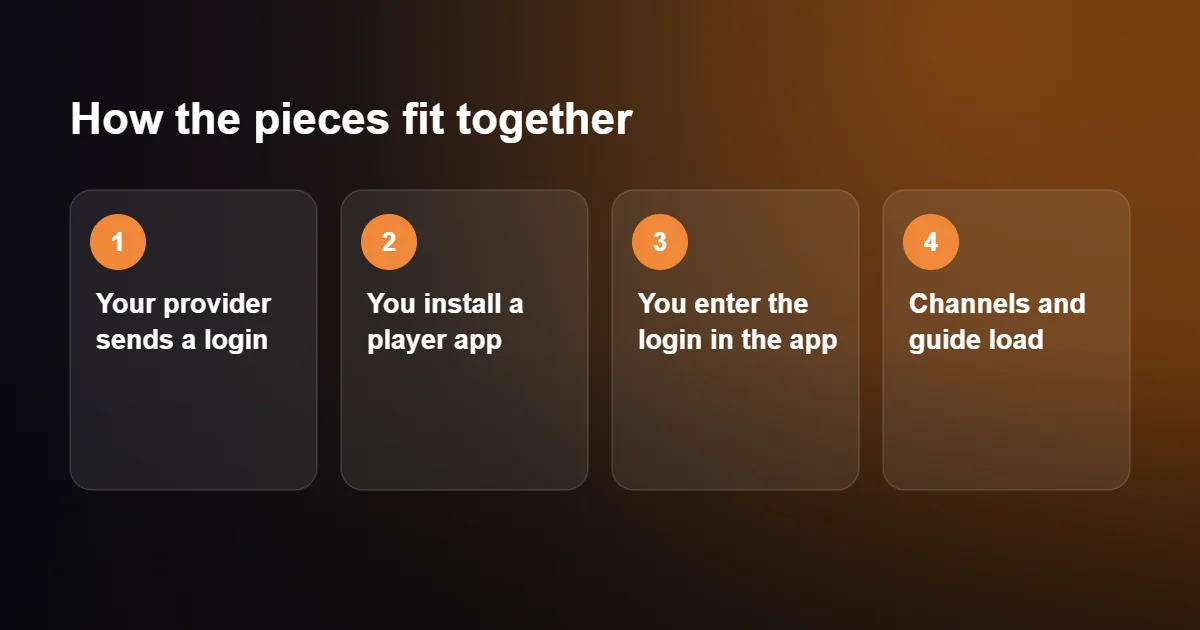
The provider supplies the channels and gives you a login. The playlist is that login in a form the app can read, either an M3U link or Xtream Codes details; our guide to M3U vs Xtream Codes explains the two. The player is only the screen through which you watch. It has no channels of its own and no connection with the provider.
This matters in practice. If a channel is missing or frozen while the app itself works normally, contact your provider. If the app will not open, crashes or shows its own activation message, the app developer is the one to ask. And when a smart TV app requests a device ID or MAC address, it is for activating the app on that television, not for your subscription.
Settings to Change First in Any Player
Even the best IPTV player apps arrive with cautious default settings. Five minutes in the settings menu makes a visible difference.
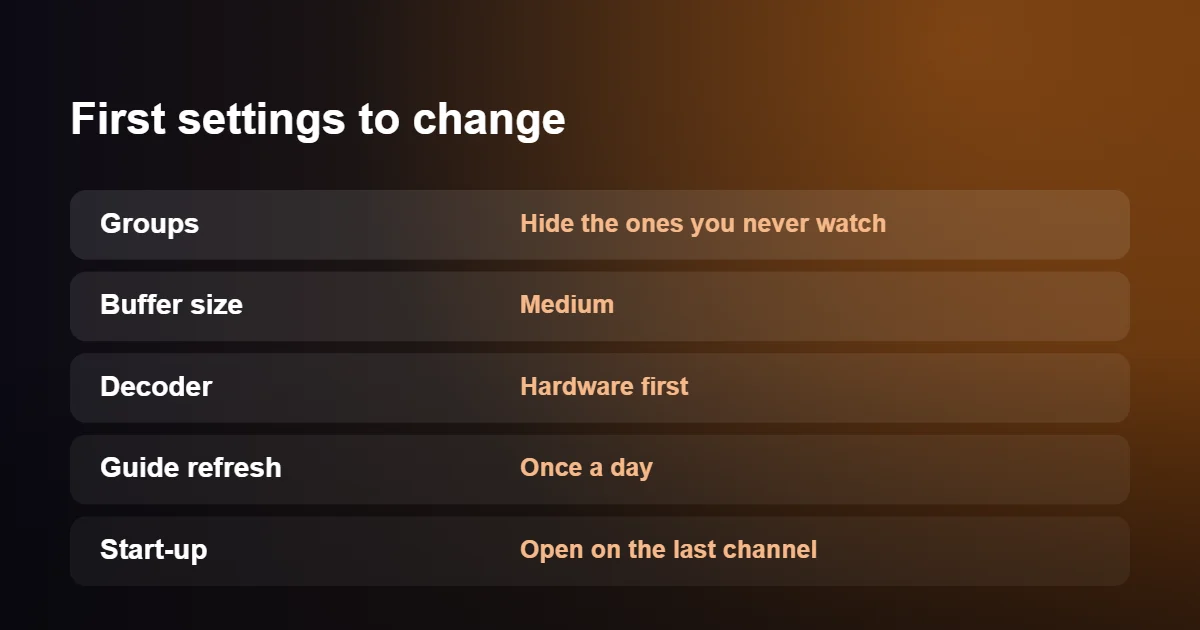
- Hide the groups you do not need. Shorter lists load faster and are easier to navigate.
- Set the buffer size to medium. A slightly larger buffer smooths over brief dips in your connection, at the cost of a second or so when changing channel.
- Leave the decoder on hardware. Hardware decoding uses the video chip in your device and runs cooler. Try software decoding only if a particular channel shows a black screen or no sound.
- Check the guide refresh. Once a day is enough. If programme times look wrong, adjust the time offset.
- Choose what happens at start-up. Opening on the last channel watched makes the app behave like a normal television.
If the picture still stutters after these changes, the cause is more likely to be the connection than the app, and our IPTV buffering fix guide takes you through the checks.
Downloading the Best IPTV Player Apps Safely
Popular apps attract imitations, and the best IPTV player apps attract more than most. App stores contain players with names and icons that are almost identical to the well-known ones, and websites offer modified versions that promise premium features for nothing. Both are best avoided.
Use the official store for your device wherever the app is listed there: the Google Play Store, the Amazon Appstore, the Apple App Store, or the app store on a Samsung or LG television. Check the developer name, not just the title. When an app has to be installed manually on a Firestick or Android box, download the file only from the developer’s own website and delete the installer afterwards.
Be wary of any player that asks for permissions it has no use for, such as contacts or text messages, and of any that demands payment by an unusual method before you have seen it work. A genuine player needs network access and storage, and little else.
When to Switch to a Different App
People tend to stay with the first player they installed, even when it frustrates them. Changing is easier than it sounds, because your login works in any app and nothing has to be cancelled. Consider a switch if any of these apply:
- the guide regularly fails to load, or loads with gaps;
- the app closes by itself when opening a large category;
- there has been no update for a year or more;
- other people in the house find the layout confusing;
- a feature you now want, such as catch-up or several favourites lists, is missing.
Since all of the best IPTV player apps accept the same login, install the new app alongside the old one, enter the same details and use both for a few days before removing either.
Best IPTV Player Apps for Particular Needs
| If you want | Try first |
|---|---|
| The simplest start for a beginner | IPTV Smarters Pro |
| The most complete TV guide | TiviMate |
| An app for an older Samsung or LG television | Smart IPTV or IBO Player |
| Something free on a computer | VLC |
| One app across iPhone, iPad and Apple TV | GSE Smart IPTV |
| A light app for a low-powered Android box | XCIPTV |
How the Best IPTV Player Apps Handle Films and Series
Live channels are only half of a modern subscription. The on-demand library can hold tens of thousands of films and episodes, and players differ widely in how they present it. The best IPTV player apps show a poster, a short description and the running time for each title, remember where you stopped so that you can resume later, and keep a continue-watching row on the home screen. For series, they group episodes by season in the right order and move on to the next episode automatically.
Two details are easy to overlook. A search that covers live channels, films and series at once saves a great deal of scrolling. And a player that lets you choose the audio track and switch subtitles on from the playback screen is far more pleasant for foreign-language films. All of this depends on signing in with Xtream Codes details, because a plain M3U playlist does not carry posters or episode information.
Remote, Phone or Keyboard: Controlling Your Player
A player is only as good as its controls. On a television, look for an app in which every function can be reached with the arrow keys and the select button, and where the channel up and down buttons work as you would expect. Remotes with number keys are a bonus in apps that let you type a channel number directly.
Some players were designed for phones and later released for television without much adaptation. They can be used with a mouse pointer or a plugged-in mouse, but it quickly becomes tiresome, and it is a good reason to choose a different app. On a computer the opposite applies: a keyboard and mouse make even a basic player such as VLC quick to use.
Common Problems With the Best IPTV Player Apps
Even the best IPTV player apps go wrong now and then. Most faults fall into a handful of types, each with a simple first step.
The app opens but the list is empty
The login was not accepted. Re-enter it carefully, and make sure you chose the right login type on the first screen: Xtream Codes details will not work in a box meant for an M3U link.
The guide shows no information
Refresh the guide from the settings and wait a few minutes. If you signed in with an M3U link, the guide address has to be added separately.
The app asks me to pay again
Activation on smart TV apps is tied to the device ID. After a factory reset or a replacement television, the ID can change. Contact the app developer with your proof of purchase; your television subscription is not affected.
One channel fails while the others work
That points to the channel, not the app. Try the alternative decoder in the settings, and if it still fails, report the channel to your provider.
The app has vanished from my television’s store
Stores remove and restore apps from time to time, and availability varies by region and model year. An installed copy usually keeps working. If you need to reinstall and cannot, pick another player from this list and sign in with the same details.
Keeping Your App Up to Date
Updates do more than add features. They keep the best IPTV player apps compatible with new versions of Android, iOS and television software, and they fix the playback faults that appear when those systems change. Leave automatic updates switched on in your app store. Apps that were installed manually do not update themselves, so check the developer’s website every few months and install the newer version over the old one, which keeps your playlist and settings.
Best IPTV Player Apps: Quick Questions
Can I use two apps with one subscription?
Yes. All of the best IPTV player apps can share one login, so install as many as you like and enter the same login in each. Only the number of screens playing at the same moment is limited by your plan.
Why does a smart TV app ask for a device ID?
It identifies your television to the app’s own website, where you add the playlist and pay any activation fee. It is separate from your subscription login.
Is a lifetime licence worth buying?
If you have used the app for a few weeks and like it, a one-off licence is usually better value than paying yearly. Do not buy one on the first day.
Will my favourites move to a new device?
Only if the app has a backup feature. Otherwise you sign in again on the new device and rebuild the list, which is quicker the second time.
Do the best IPTV player apps work on every smart TV?
No. Each television brand has its own app store, and very old models may have none of these players. In that case a streaming stick in an HDMI socket is the easiest answer.
Setting Up Your App
Installation takes about ten minutes. Follow our step-by-step guides to install IPTV on Firestick or set up IPTV on a Smart TV. If you take a free trial with British IPTV Direct, tell us your device and we will recommend one of the best IPTV player apps for it.