Looking for an IPTV buffering fix that actually works? Freezing, stuttering and the spinning circle are almost always caused by something between your router and your screen, which means you can usually solve the problem yourself in a few minutes. This guide walks through nine checks in the order that fixes most cases fastest.
In This Guide
Why IPTV Buffers in the First Place
IPTV sends video to your device in small pieces. Your app keeps a few seconds in reserve, called the buffer. When pieces arrive more slowly than you watch them, the reserve empties and the picture pauses.
Four things cause that: a slow or unstable internet line, weak Wi-Fi, a device that is short of memory, or a busy server. The first three are in your home, so start there.
The 9-Step IPTV Buffering Fix
1. Test your real speed on the device you watch on
Run a speed test on the TV or stick itself, not on your phone next to the router. A tool such as Speedtest is fine. You want at least 15 Mbps for Full HD and 25 Mbps for 4K. Our guide to internet speed for IPTV explains the numbers in detail.
2. Restart the router and the streaming device
Unplug both for 30 seconds. This clears memory, drops stuck connections and often restores full speed. It sounds too simple, but it resolves a large share of problems.
3. Switch to an Ethernet cable
A wired connection is the single most effective IPTV buffering fix. Smart TVs have a port on the back; a Firestick needs a low-cost Ethernet adapter. If a cable cannot reach, powerline adapters are a reasonable second choice.
4. Use the 5 GHz Wi-Fi band
Most routers broadcast two networks. The 2.4 GHz band travels further but is slower and crowded by neighbours. The 5 GHz band is faster over short distances. Connect your TV or stick to 5 GHz if it is in the same room or the next one.
5. Move the router or the stick
Wi-Fi hates walls, fish tanks and the back of a television. Lift the router off the floor and out of cupboards. On a Firestick, use the HDMI extender from the box so the stick is not hidden behind the screen.
6. Clear the app cache
On a Firestick go to Settings, Applications, Manage Installed Applications, choose your IPTV app and select Clear Cache. On Android TV the option is under Settings, Apps. Do not choose Clear Data unless you have your login details to hand.
7. Close background apps and free up storage
Streaming sticks have little memory. Force stop apps you are not using and remove ones you never open. Aim to keep at least 1 GB of storage free.
8. Change the player settings
Many IPTV apps let you pick a different video decoder (hardware or software) or increase the buffer size. If one channel stutters while others are fine, try the alternative decoder first. The best IPTV player apps make these settings easy to find.
9. Check who else is using your broadband
Game downloads, cloud backups and several people streaming at once all share the same line. Pause big downloads during a live match, or set your router to prioritise the TV if it has a quality of service option.
Buffering Only at Peak Time?
If everything is smooth in the afternoon and struggles between 7 pm and 10 pm, the cause is usually congestion, either on your provider’s network or on the IPTV service itself. Run a speed test at that time. If your speed drops sharply, speak to your broadband provider. Ofcom publishes clear advice on broadband performance in the UK.
If your speed is fine and the problem affects many channels, contact your IPTV provider’s support. A good service will check the line for you and suggest a different stream or setting.
Quick Checklist
| Symptom | Most likely cause | First thing to try |
|---|---|---|
| Every channel freezes | Slow or unstable connection | Speed test, then restart the router |
| Freezes far from the router | Weak Wi-Fi | Ethernet or 5 GHz |
| App is slow to open | Low memory | Clear cache, close apps |
| One channel only | That stream or the decoder | Switch decoder, tell support |
| Evenings only | Congestion | Test at peak time |
Buffering, Freezing or Pixelation: Tell Them Apart First
People use the word buffering for almost anything that interrupts the picture, but the interruptions are not all alike, and each points to a different cause. Choosing the right IPTV buffering fix starts with looking closely at what the screen actually does.
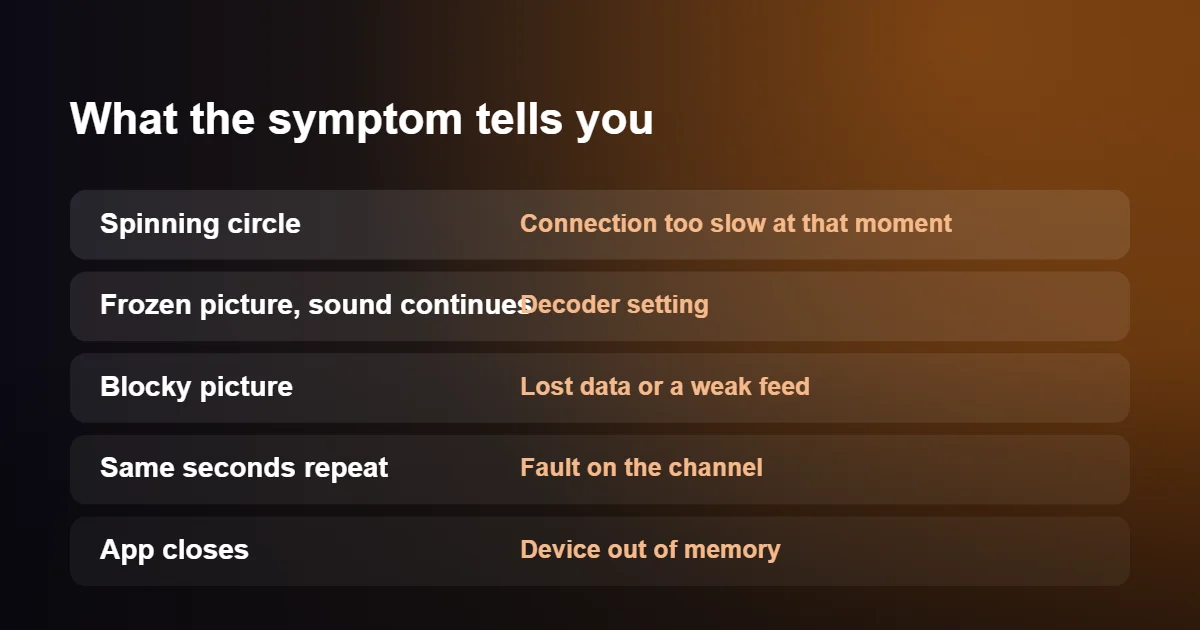
| What you see | Most likely cause | First thing to try |
|---|---|---|
| A spinning circle, then the picture resumes | Data is arriving too slowly at that moment | Test the speed at the television |
| The picture freezes while the sound carries on | The video decoder is struggling | Switch between hardware and software decoding |
| Blocky squares or a smeared picture | Data lost on the way, or a weak source feed | Try a cable; try another version of the channel |
| The same few seconds repeat | A fault on that channel | Report the channel to support |
| The app closes or restarts | The device has run out of memory | Restart the device and hide unused groups |
Only the first row is buffering in the strict sense, and it is the only one a connection-based IPTV buffering fix will cure. The rest look similar from the sofa, but no amount of extra broadband will cure a decoder problem or a faulty channel, which is why it pays to identify the symptom before changing anything.
A Two-Minute Test Before Any IPTV Buffering Fix
Before working through settings, find out where the problem lives, since an IPTV buffering fix aimed at the wrong place wastes an evening. Four quick checks narrow it down to the channel, the device, your home network or the service.
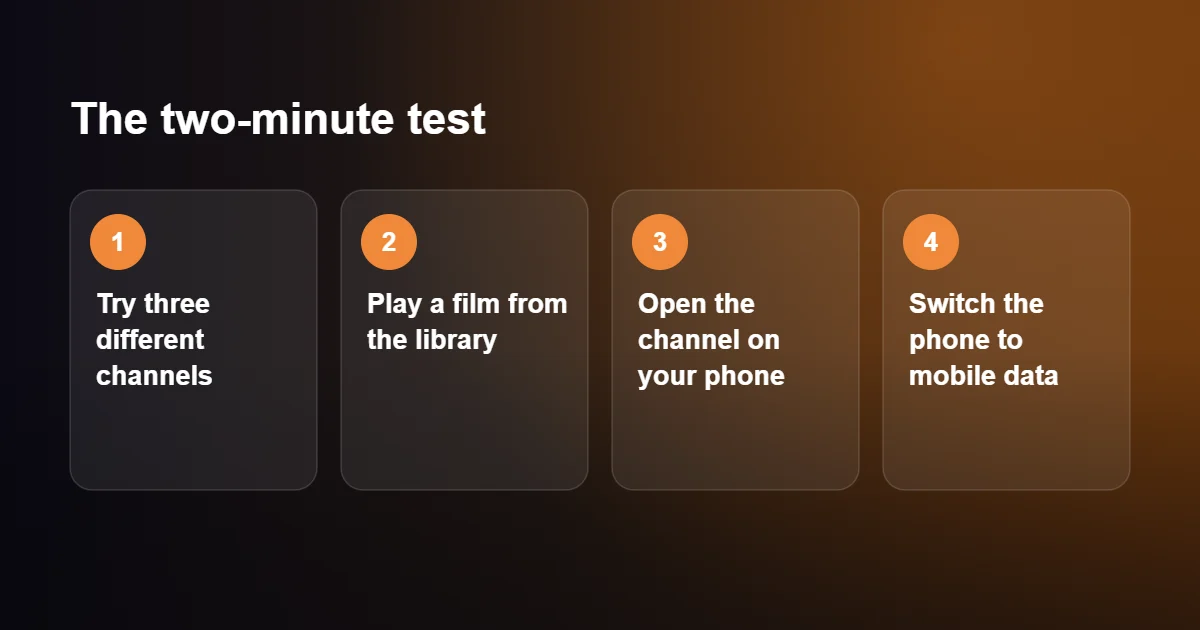
- Try three channels from different categories. If only one misbehaves, the fault is on that channel and nothing at your end will change it.
- Play a film from the on-demand library. Films are stored files, not live feeds. If films play perfectly while live channels stall, your connection is probably fine and the live feed is under strain.
- Open the same channel on your phone, on the same Wi-Fi. If the phone plays smoothly beside a stuttering television, the television or stick is the weak point.
- Switch the phone to mobile data and try once more. If the channel is smooth on mobile data and poor on your Wi-Fi, the home network or broadband line is responsible.
Write down what you found. These four answers decide which IPTV buffering fix applies, and they are the first things a support agent will ask.
IPTV Buffering Fix by Device
The nine-step IPTV buffering fix above applies everywhere. Each type of device also has weaknesses of its own, and knowing them saves time.
Amazon Firestick
A Firestick sits directly behind the television, in the warmest spot in the room and shielded from the router by a large metal panel. Use the short HDMI extender supplied in the box to move it clear of the set; this alone often improves both Wi-Fi reception and cooling. Power it from the wall adapter, not from a USB socket on the television, which may not supply enough current. Setup details are in our guide to installing IPTV on Firestick.
Samsung and LG smart TVs
Built-in apps are convenient, but the processors and Wi-Fi chips in televisions are modest and are never upgraded. Install any pending software update, then do a full restart by unplugging the set for a minute, because the power button on the remote only puts it into standby. If a television more than four or five years old still buffers after that, an inexpensive streaming stick will usually outperform it. See how to set up IPTV on a smart TV.
Android TV boxes
Unbranded boxes are prone to overheating, which makes the processor slow itself down after half an hour of use. If the picture is fine at first and deteriorates later, feel the case. Stand the box on a hard surface with space around it. More advice is in our IPTV on Android TV guide.
Apple TV, iPhone and iPad
Apple devices rarely lack power, so the IPTV buffering fix here is usually a setting. Look at the data-saving features: Low Data Mode on the network and Low Power Mode on a phone both reduce the quality an app will request.
Windows and Mac
On a computer the usual culprits are other programs. Dozens of open browser tabs, a cloud-sync client and a video call will compete with the player. In VLC, raising the network caching value in the preferences to around 3000 ms gives the stream a larger cushion.
MAG boxes
MAG boxes are built for a network cable and are noticeably less stable on Wi-Fi. If yours is wireless, a cable or a pair of powerline adapters is the most effective IPTV buffering fix available for it.
Picture Settings That Reduce Buffering
Many services list the same channel several times at different qualities, typically marked SD, HD, FHD and 4K. The higher the quality, the more data every second, and the less margin you have when the connection dips. Choosing the HD entry in place of FHD or 4K is the quickest IPTV buffering fix there is, and on a television under fifty inches the difference in sharpness is hard to see from a normal viewing distance.
Some lists also include a backup or low-bitrate version of popular channels. These exist precisely for busy periods, so move to one when a major event is on and the main feed is struggling.
One setting on the streaming device itself can imitate buffering. Automatic frame rate matching makes the television change its refresh rate when a channel starts, and on some sets this causes a black screen for a second or two, or a brief stutter. If that happens every time you change channel, turn the feature off and set a fixed 50 Hz output, which matches UK broadcasts.
Router Settings for a Lasting IPTV Buffering Fix
As an IPTV buffering fix, restarting the router helps for a day. A few changes in its settings help permanently. You reach them through the router’s app or by typing the address printed on its label into a browser.
- Separate the two Wi-Fi bands. Many routers broadcast 2.4 GHz and 5 GHz under one name and decide for themselves which band each device uses. A streaming stick can end up on the slower band without telling you. Giving the bands different names lets you connect the stick to 5 GHz and keep it there.
- Let the router choose its channel. In flats and terraced streets, neighbouring networks overlap. Set the channel to automatic, or use the router’s scan feature if it has one, and restart it so that it picks the quietest option.
- Turn on device priority. Often called Quality of Service, this tells the router to serve the television first when the line is busy.
- Install firmware updates. Routers receive fixes for Wi-Fi stability, and most people never apply them. Look for an update button in the settings.
There are also settings best left alone. Changing technical values such as MTU, or switching DNS servers at random because a forum suggested it, rarely improves streaming and can break other things. A different DNS server can make a channel start a fraction sooner; it does not stop buffering once the channel is playing.
How Long Should a Channel Take to Start?
Before looking for an IPTV buffering fix, it helps to know what normal looks like. On a healthy setup a channel opens in one to three seconds. The player uses that time to collect a few seconds of video in advance, which is the buffer that protects you from small dips in the connection. A start-up time of five seconds or more on every channel suggests a slow link between your home and the service, or a device that is short of memory.
A larger buffer setting in the player makes channels a little slower to start and much less likely to pause, and that trade is nearly always worth making. Setting the buffer to its maximum is not better still: on a device with little memory it can cause the app to close.
Keep a Log to Speed Up Your IPTV Buffering Fix
Intermittent problems make the right IPTV buffering fix hard to find, because by the time you look, everything works. A short note each time the picture stalls reveals the pattern within a week.
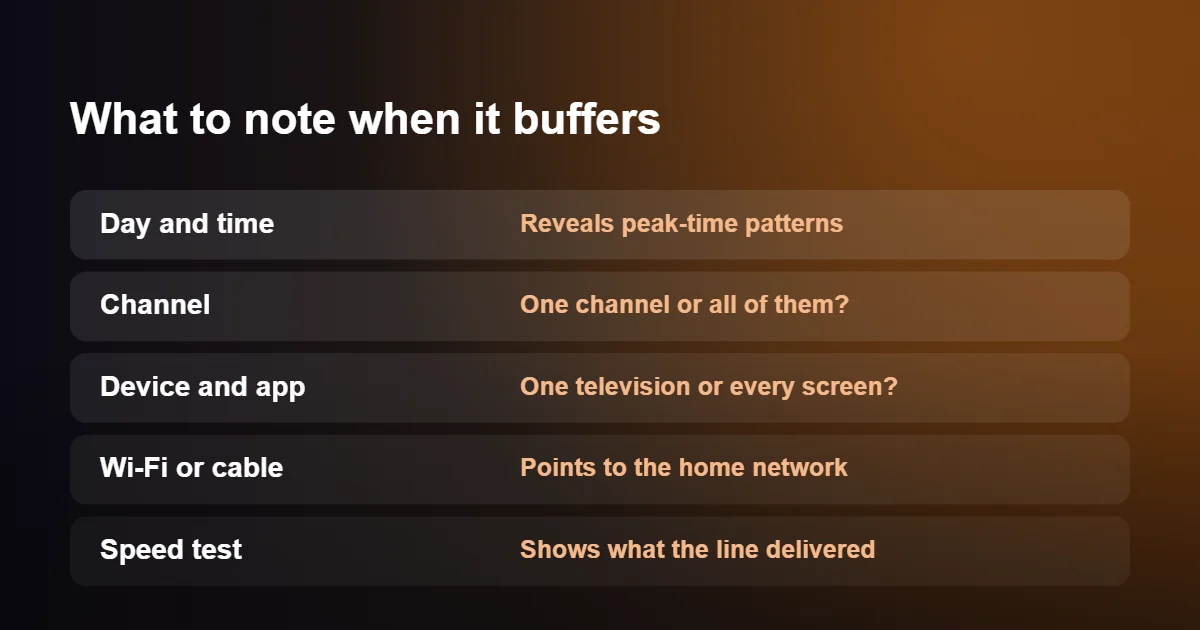
Record the day and time, the channel, the device and app, whether that device was on Wi-Fi or a cable, and a speed test result if you can run one. Patterns appear quickly. Trouble only between three and five on a Saturday afternoon points to demand during live sport. Trouble only on the bedroom television points to the Wi-Fi in that room. Trouble on one group of channels at any hour points to the source of those channels.
The same notes make a support request far more effective. A message that says a named channel froze at a named time on a Firestick connected by cable, while a speed test showed 60 Mbps, can be acted on straight away. A message that says it keeps buffering cannot.
Mistakes That Undo an IPTV Buffering Fix
Some popular remedies are sold as an instant IPTV buffering fix and make things worse, or cost money without touching the cause.
- Installing booster or cleaner apps. They run in the background, use memory and show adverts. A restart does the same job better.
- Factory resetting again and again. A reset is a last resort, not a routine. If the first one changed nothing, the second will not either.
- Paying for faster broadband before testing. If the line is already fast at the router, the weak link is inside the house. Our guide to internet speed for IPTV shows how to check.
- Relying on a single Wi-Fi extender. Most extenders halve the speed they pass on. A cable or a mesh system is a better use of the money.
- Filling the device with apps. A streaming stick with almost no free storage slows down in every app, and the player is no exception.
- Changing five things at once. Make one change, watch for an evening and then decide. Otherwise you will never know which IPTV buffering fix actually worked.
IPTV Buffering Fix: Quick Questions
Does clearing the cache delete my login?
No. Clearing the cache is a safe IPTV buffering fix that removes temporary files only. Clearing data, the option next to it, does erase the login, so choose carefully.
Is buffering worse in 4K?
Yes, which is why dropping to HD is such a reliable IPTV buffering fix. A 4K channel needs roughly twice the data of Full HD, so it is the first to suffer when the connection dips.
Will a new router solve it?
Only if Wi-Fi is the weak link. Test with a cable first; if the picture is smooth on a cable, a better router or a mesh system is a sound IPTV buffering fix.
Does the weather cause buffering?
Not directly. Unlike a satellite dish, broadband is not affected by rain, although a damaged line can become worse in wet weather.
Why does it only happen during big matches?
Millions of people start streaming at the same moment, which loads both the service and the networks in between. Choosing the HD or backup version of the channel usually keeps the picture moving.
When the IPTV Buffering Fix Is a Better Service
If you have worked through all nine steps and the picture still stalls, the weak link may be the service. The fair way to find out is to compare. British IPTV Direct offers a free 24-hour IPTV trial, so you can test stability on your own connection at the times you normally watch, before paying anything.