Setting up IPTV on Android TV is simple once you know which kind of Android device is under your television. “Android box” covers everything from a Sony set running Google TV to an unbranded box from an online marketplace, and they do not all behave the same way. This guide shows you how to identify yours and get IPTV on Android TV running in six steps.
In This Guide
Android TV, Google TV or a Generic Box?
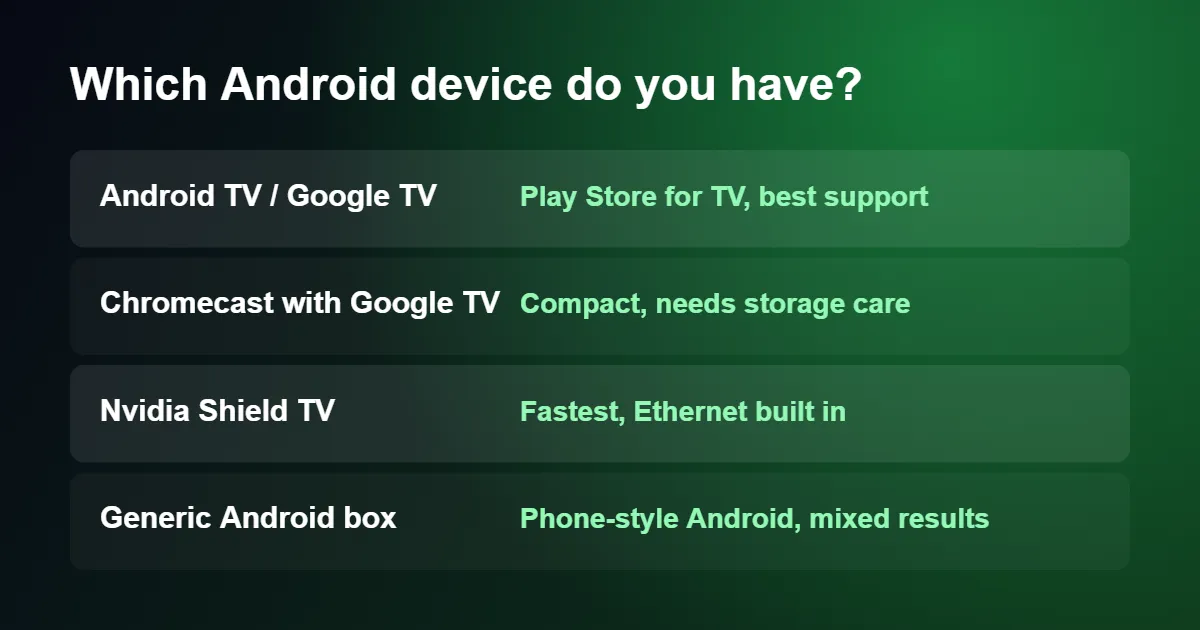
Android TV and Google TV are versions of Android made for televisions. They have a remote-friendly home screen and a Play Store that only lists apps built for a TV. Sony, Philips, TCL and Hisense sets use them, as do the Chromecast with Google TV, the Google TV Streamer, the Xiaomi TV Box and the Nvidia Shield.
Generic Android boxes run the phone and tablet version of Android. They often look powerful on paper, but the interface expects a touchscreen, updates are rare and some TV apps refuse to install. They work, but expect a little more effort.
To check, open Settings › System › About (or Device Preferences › About). A certified device shows an “Android TV OS” or “Google TV” entry.
How to Set Up IPTV on Android TV in 6 Steps
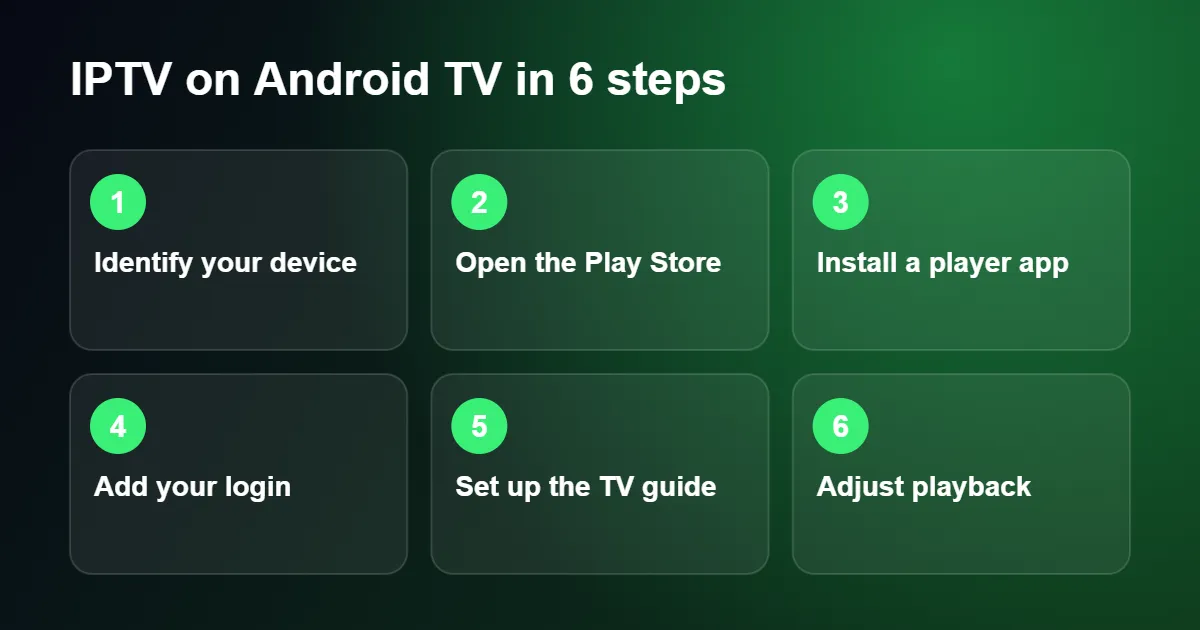
Step 1: Connect and update
Connect the box to the internet, by cable if it has an Ethernet port. Then open Settings › System › About › System update and install anything available.
Step 2: Open the Google Play Store
From the home screen open Apps and select the Play Store. On Google TV, select Search and type or say the name of the app instead.
Step 3: Install an IPTV player app
These are the most reliable players for IPTV on Android TV. Search for one and select Install:
- TiviMate: the favourite on Android TV, with a guide that looks like a traditional set-top box. The basic version is free.
- XCIPTV: a clean free player with two video engines to choose from.
- IPTV Smarters Pro: a simple layout the whole family can use.
We compare them in detail in our guide to the best IPTV player apps.
Step 4: Add your login
Open the app and choose Add playlist. Select Xtream Codes and enter the server address, username and password from your provider, or choose M3U and enter the link. Not sure which you have? See M3U vs Xtream Codes.
A tip for typing: install the Google TV app on your phone and use its remote feature. When a text field opens on the television, your phone’s keyboard appears and you can paste the details.
Step 5: Set up the TV guide
With an Xtream Codes login the guide is usually fetched automatically. In TiviMate, open Settings › EPG and check that a source is listed and updated. Set past days to keep to one or two; storing a week of history fills a small box quickly.
Step 6: Adjust playback
Open the app’s playback settings. Two options are worth knowing. Buffer size: a medium or large buffer smooths out brief network dips. Auto frame rate (called AFR in some apps): switch it on so the box matches the 50 frames per second used by UK channels, which removes judder on sport.
If the App Is Not in the Play Store
Some players are not listed for every device. You can install them manually, which Android calls sideloading.
- Install Downloader from the Play Store.
- Open Settings › Apps › Security & restrictions › Unknown sources and allow Downloader.
- On Google TV, if that menu is missing, go to Settings › System › About and select Android TV OS build seven times to reveal the option.
- Open Downloader and enter the address or code supplied by the app’s developer or your provider.
- Select Install, then delete the installer file afterwards.
Only install files from the app developer’s own site or a source you trust. The process is the same as on Amazon devices, described in how to install IPTV on Firestick.
Getting the Best Picture for IPTV on Android TV
Open Settings › Display & Sound. Set the resolution to the highest your television supports, and where the menu offers it, choose a 50 Hz refresh rate for UK viewing or enable Match content frame rate.
On 4K sets, check that the HDMI port you are using has its enhanced or “UHD colour” mode enabled in the television’s own settings. Without it, the box may be limited to Full HD. Google’s Google TV help centre covers the display options for each device.
Keep IPTV on Android TV Running Smoothly
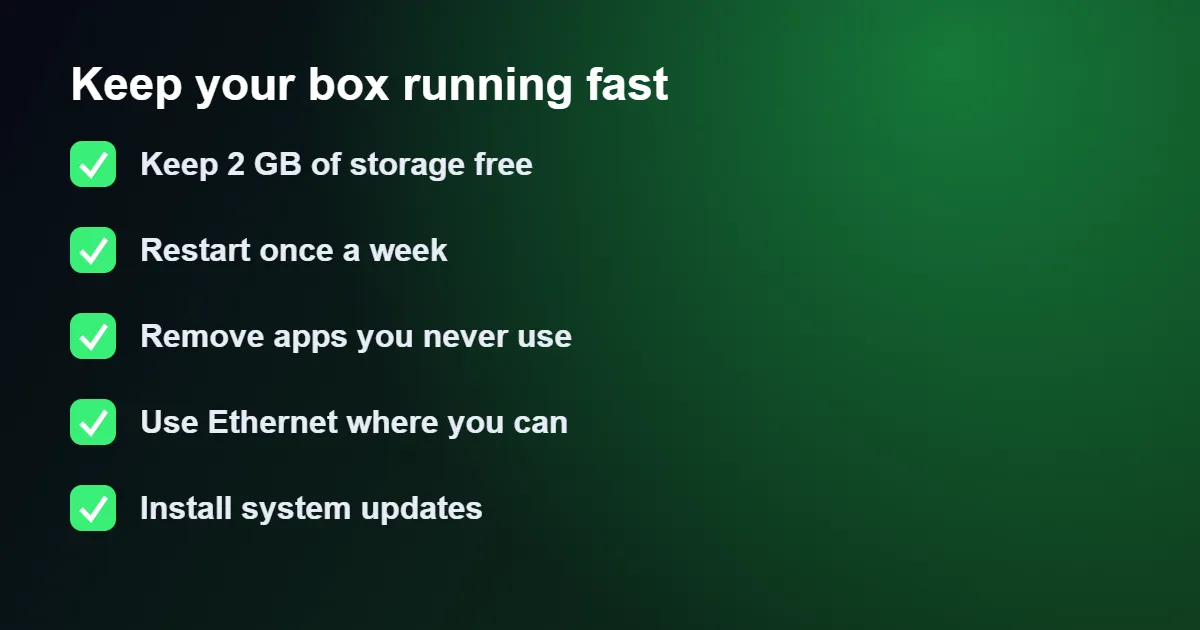
Storage is the usual culprit on small devices. The Chromecast with Google TV has very little free space, and when storage runs low apps slow down and updates fail. Open Settings › System › Storage, remove apps you do not use and clear the cache of the ones you keep.
A weekly restart, from Settings › System › Restart, clears memory and solves a surprising number of small glitches.
Fixing Common Problems With IPTV on Android TV
“App not compatible with this device”
You are probably on a generic box, or the app has no TV version. Try another player from the list, or sideload it using the steps above.
The remote cannot select buttons in the app
The app was designed for touch. Plug in a USB mouse, or choose a player built for television such as TiviMate.
Channels buffer in the evening
Switch from Wi-Fi to Ethernet, then increase the buffer size in the player. If that does not help, follow our IPTV buffering fix guide and check your internet speed for IPTV.
Audio is out of sync
Open the player’s audio settings and try the alternative decoder, or use the audio delay control if one is offered. In the device’s sound settings, setting the format to Automatic usually resolves it.
Typing Your Login for IPTV on Android TV the Easy Way
The slowest part of setting up IPTV on Android TV is entering a long server address with a remote, one letter at a time. There are three quicker ways, and all of them reduce the typing mistakes that cause most failed logins.
- Use your phone as the keyboard. Install the Google TV app on an Android phone or iPhone, sign in with the same Google account and tap the remote button. Whenever a text box is selected on the television, the phone keyboard opens, and you can paste the address straight from the message your provider sent.
- Plug in a keyboard. Any USB keyboard works the moment it is connected, and a Bluetooth one can be paired under Settings › Remotes & Accessories.
- Look for a code or QR option. Some players show a short code or QR code on screen so that you can add the playlist from a web page on your phone instead of typing on the television at all.
If the login is still refused, compare it with the original character by character. The usual culprits are a capital letter O typed as a zero, a missing port number after the colon, a space added at the end by the keyboard, and https typed where the address starts with http.
Tidying the Home Screen for IPTV on Android TV
Out of the box, the home screen you see before starting IPTV on Android TV is built to promote films and services you do not use. A few changes make the player the first thing you reach when the television comes on.
Start by moving the player to the front of the apps row: highlight it, press and hold the select button, choose Move and slide it to the first position. On Google TV you can go further and switch on Apps only mode under Settings › Accounts & sign-in, which removes the rows of recommendations and leaves a clean grid of your own apps. The home screen also loads faster this way, which is noticeable on a stick with limited memory.
Many players add one more convenience. Look in the player settings for an option such as start on boot or launch at startup; with it enabled, the box opens the player by itself and returns to the last channel you watched. For a household that mainly uses IPTV on Android TV in place of an aerial or dish, this makes the box behave like an ordinary television.
Remote Control Tips for IPTV on Android TV
The players used for IPTV on Android TV share a similar set of controls, although the details vary from app to app. These are the ones worth learning first.
| Button | What it does in most players |
|---|---|
| Select (OK) | Opens the channel list while a channel is playing |
| Press and hold Select | Opens the options for a channel, including add to favourites |
| Up and Down | Changes to the next or previous channel |
| Left and Right | Moves between categories, or skips back and forward in a film |
| Back | Closes a menu; pressed twice, it usually exits the player |
If you would rather use one remote for everything, switch on HDMI-CEC, which lets the television remote control the box through the HDMI cable. The option is under Settings › Display & Sound › HDMI-CEC on the box, and it must also be enabled on the television, where each manufacturer gives it a different name: Anynet+ on Samsung, Simplink on LG and Bravia Sync on Sony.
Sound Settings for IPTV on Android TV
With IPTV on Android TV, channels arrive with different kinds of audio. Most are plain stereo, while films and some sports channels carry surround sound. When a channel has a picture but no sound, the cause is nearly always a surround format that your television or soundbar cannot decode.
Open Settings › Display & Sound › Advanced sound settings and check how surround formats are selected. Automatic is right for most setups, because the box asks the television what it supports. If silent channels persist, choose the manual option and switch off the formats your equipment does not handle, or set the player itself to output stereo. With a soundbar or AV receiver, connect the box to the television and the soundbar to the HDMI socket marked ARC or eARC, so that every source uses the same speakers.
For late-night viewing, pair Bluetooth headphones under Settings › Remotes & Accessories. A small delay between lips and voice is common with Bluetooth; most players have an audio delay setting that corrects it.
Pause, Rewind and Catch-Up
Whether you can pause or go back with IPTV on Android TV depends on two things: the player and the channel. Films and series from the on-demand library can always be paused, rewound and resumed later. Live channels are different. Some players can hold a short buffer so that you can pause for a few minutes, and some channels offer catch-up, which lets you open a programme that was shown earlier in the day or week.
In the guide, catch-up programmes are normally marked with a small clock or rewind symbol. Select a past programme with that mark and it plays from the beginning. If none of your channels show the symbol, check that you signed in with Xtream Codes details rather than an M3U link, because catch-up information is often missing from a plain playlist. The differences between the two are explained in our guide to M3U vs Xtream Codes.
Profiles and Parental Controls
A shared living-room box running IPTV on Android TV needs a little protection. Inside the player, set a parental PIN and lock the categories that are not suitable for children; locked groups stay in the list but ask for the code before they open. Choose a PIN that is not the same as the one on your phone.
On Google TV you can also add a kids profile from the profile picture on the home screen. A kids profile only shows the apps you approve and can be given a daily time limit and a bedtime. To stop accidental purchases, open the Play Store settings on the box and require authentication for every purchase, which matters with players that sell upgrades inside the app.
Power Settings That Interrupt IPTV on Android TV
Two power-related problems are regularly mistaken for a faulty service. The first affects sticks that draw power from a USB socket on the television. Those sockets often supply too little current, and the stick responds by freezing, restarting or dropping Wi-Fi when the processor is working hard. Always use the mains adapter that came in the box.
The second is an energy-saving timer. Many televisions switch themselves off after a few hours without a button press, and some boxes go to sleep on a similar schedule, which is why a long sporting event can end with a black screen. Look under Settings › System › Power & Energy on the box and in the eco or general settings of the television, and lengthen or disable the inactivity timer.
Keeping the System and Apps Up to Date
Updates that affect IPTV on Android TV arrive in three places. System updates are found under Settings › System › About › System update; install them when offered, since they often fix Wi-Fi and playback faults. Apps from the Play Store update themselves as long as automatic updates are switched on in the Play Store settings.
The exception is any player you installed manually. A sideloaded app is invisible to the Play Store, so it stays on the version you installed until you repeat the process with a newer file. If a sideloaded player starts crashing or stops loading the guide, an out-of-date version is the first thing to rule out. After any major system update it is also worth opening the display settings again, because resolution and refresh rate are occasionally reset to their defaults.
IPTV on Android TV: Quick Questions
Is a built-in Android TV as good as a separate box?
Yes, for most people. A television with Google TV built in runs the same apps. Budget sets can be slow, in which case a separate box or stick gives a faster experience.
Which box is best for IPTV on Android TV?
The Nvidia Shield TV is the fastest and has Ethernet built in. The Google TV Streamer and Chromecast with Google TV are good value. Any certified device is preferable to an unbranded box.
Can I use the same subscription on my phone?
You can install it on both. Watching on two screens at the same time depends on your plan.
Do I need a Google account for IPTV on Android TV?
You need one to download apps from the Play Store, and it is free to create. The account is only used for the store; it has nothing to do with your television subscription, which has its own login.
Is Android TV the same as Android on a phone?
They share the same foundations, but the television version has its own Play Store with apps designed for a remote. That is why an app you use on your phone may not appear when you search for it on the box.
Can I find channels with voice search?
The microphone button searches the big streaming services and the web, not the channel list inside a player. To find a channel, use the search function within the player itself.
Do the player apps cost money?
Several good players are free. Others are free to try and charge a small fee to unlock extras such as multiple playlists or a recording feature. Any payment goes to the app developer and is separate from the subscription you use for IPTV on Android TV.
Will a factory reset remove my subscription?
No. A reset wipes the apps and the login saved on the box, but the subscription lives on the provider’s side. Reinstall the player, enter the same details and IPTV on Android TV works as before.
Ready to watch? Start a free 24-hour trial, tell us which box you own, and we will help you set up IPTV on Android TV on WhatsApp.