
Watching IPTV on Windows is the easiest setup of any device: you already have a keyboard for typing your login, a mouse for browsing channels and a screen ready to go. The only real decision is which program to use. This guide compares the four best options for IPTV on Windows 10 and Windows 11 and walks through each one.
In This Guide
What You Need for IPTV on Windows
A PC or laptop running Windows 10 or 11, a broadband connection and the login details from your provider. Those details arrive either as an M3U link or as an Xtream Codes login (server, username and password). If the terms are new to you, M3U vs Xtream Codes explains them in two minutes.
No details yet? A free 24-hour trial gives you a working login to test with.
The 4 Best Ways to Watch IPTV on Windows
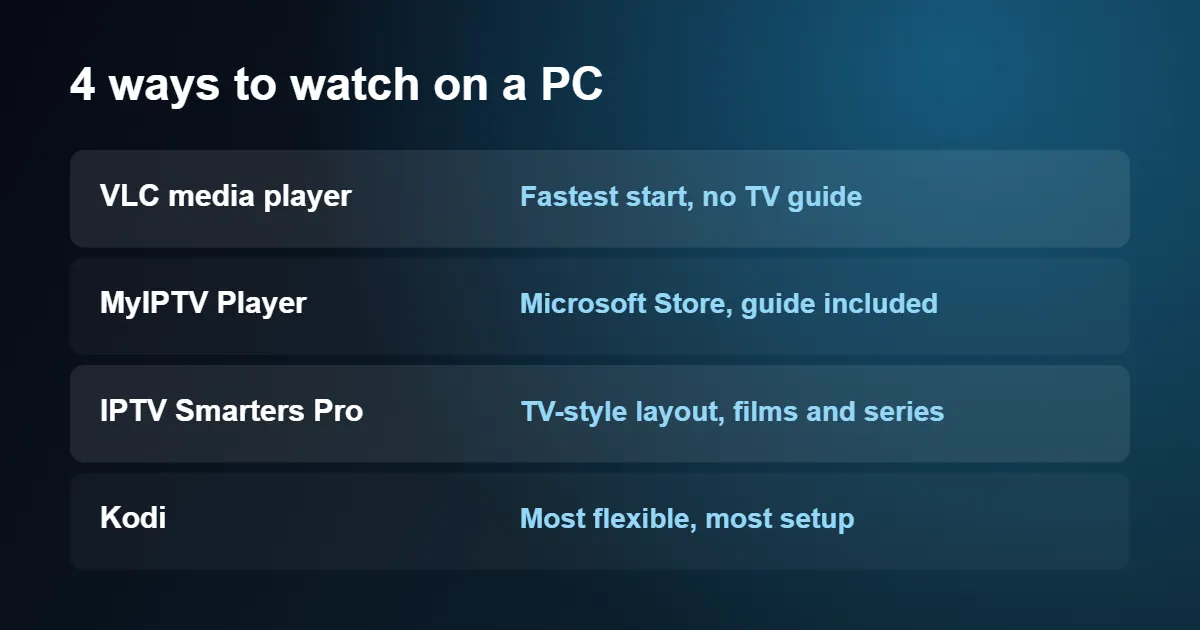
1. VLC media player: the quickest start
VLC is free, open source and already installed on millions of computers. It plays an M3U link directly, with nothing else to configure.
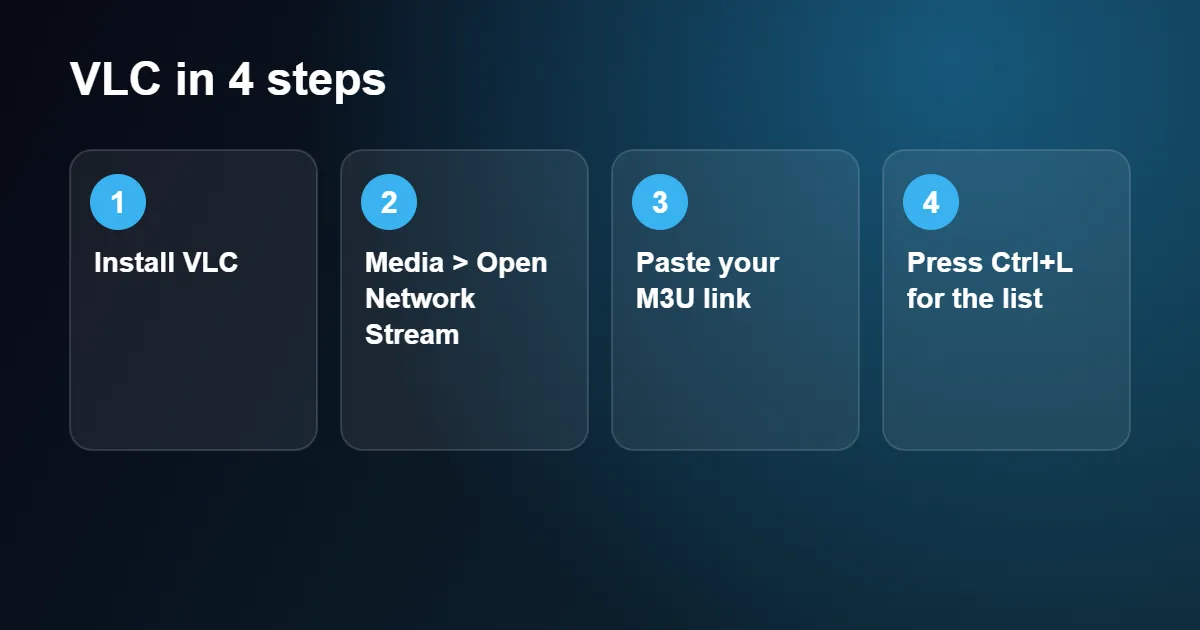
- Download VLC from the official VideoLAN website and install it.
- Open VLC and choose Media › Open Network Stream, or press Ctrl+N.
- Paste your M3U link into the box and select Play.
- Press Ctrl+L to show the playlist, then use the search box at the top right to find a channel.
To avoid pasting the link every time, choose Media › Save Playlist to File and keep the file on your desktop. The drawback of VLC is that there is no programme guide and no separate film section; it is a list and a player, nothing more.
2. MyIPTV Player: a proper guide from the Microsoft Store
MyIPTV Player is a free app in the Microsoft Store, so it installs and updates like any other Windows app.
- Open the Microsoft Store, search for MyIPTV Player and select Get.
- Open the app and go to Settings › Add new playlist and EPG source.
- Under Remote channel list, give the playlist a name, paste your M3U link and select Add remote list.
- If you have a guide link, add it under Programme guide (EPG) source.
- Return to Settings, pick your playlist from the drop-down menu and select Refresh.
Channels now appear under the Channels tab, grouped by category, with a guide alongside.
3. IPTV Smarters Pro: the television-style layout
If you use IPTV Smarters on a Firestick or phone, the Windows version looks the same: large tiles for Live TV, Films and Series. It is the best choice when you want on-demand content laid out with posters.
- Download the Windows installer from the official IPTV Smarters website and run it.
- Open the app and choose Login with Xtream Codes API.
- Enter any name, then your username, password and server address.
- Select Add User and wait for the content to download.
4. Kodi: the most flexible option
Kodi is a full media centre. It takes longer to set up, but it suits people who already use it for their own films and music.
- Install Kodi from the Microsoft Store.
- Go to Add-ons › Install from repository › PVR clients and install PVR IPTV Simple Client.
- Open the add-on’s Configure screen, set the location to Remote path and paste your M3U link.
- Restart Kodi. A new TV section appears on the home screen.
Which One Should You Choose?
Choose VLC to check a login in thirty seconds or for occasional viewing. Choose MyIPTV Player for everyday live television with a guide. Choose IPTV Smarters Pro if films and series matter as much as live channels. Choose Kodi only if you already know your way around it.
For players on other devices, see our round-up of the best IPTV player apps.
Settings for Smoother IPTV on Windows
Turn on hardware decoding in VLC
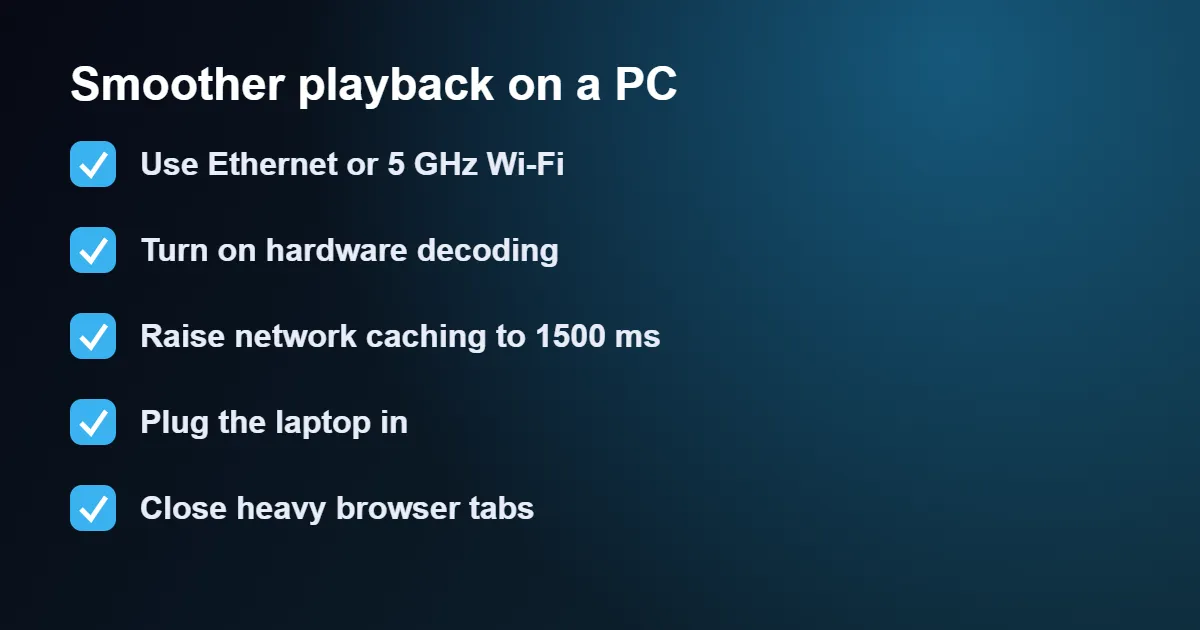
Go to Tools › Preferences › Input / Codecs and set Hardware-accelerated decoding to Automatic. Your graphics chip then does the work, which keeps older laptops cool and quiet.
Increase the network cache
In the same window, select All under Show settings at the bottom left, open Input / Codecs and find Network caching (ms). Raising it from 1000 to 1500 or 2000 gives the player a larger reserve and smooths out brief dips in your connection. Channel changes become slightly slower in exchange.
Check your power mode
On battery, Windows limits performance. Plug the laptop in, or open Settings › System › Power & battery and choose Best performance while you watch.
Watching on a Television
A laptop makes a good temporary TV box. Connect it to the television with an HDMI cable, press Windows key + P and choose Second screen only. Press F in VLC, or F11 in most other apps, for full screen.
For a permanent setup, a dedicated device is more convenient than leaving a computer running. See how to install IPTV on Firestick or how to set up IPTV on a Smart TV.
Fixing Common Problems With IPTV on Windows
“Your input can’t be opened” in VLC
The link is incomplete or has expired. Copy it again from the original message, making sure nothing was cut off at the end, and check that your subscription is active.
The playlist loads but nothing plays
Security software sometimes blocks streaming addresses. Pause the web protection feature briefly to test. If that solves it, add the player to the program’s list of allowed apps and switch protection back on.
Picture stutters on every channel
Run a speed test in your browser. If the result is well above 15 Mbps, the bottleneck is probably the computer, so close other programs and enable hardware decoding. Otherwise follow our IPTV buffering fix guide.
Sound but a black picture
Update your graphics driver through Windows Update. If the problem remains, switch hardware decoding off in the player to confirm whether the driver is the cause.
Windows 10 or Windows 11 for IPTV on Windows?
IPTV on Windows works on both versions, and every player in this guide installs on either. The differences are small but worth knowing. Windows 11 handles HDR screens better and has Snap layouts, which make it easy to park a channel beside your work. Windows 10 no longer receives free security updates from Microsoft, so although the players still run on it, a machine you use for everything else is better kept on a supported version.
Two special cases catch people out. A laptop sold in S mode can only install apps from the Microsoft Store, which rules out the standard VLC and Kodi installers; either use a Store app such as MyIPTV Player or leave S mode in the Store settings, bearing in mind that the switch cannot be reversed. And the newer laptops with Snapdragon processors run ordinary Windows programs through a translation layer, which is fine for IPTV on Windows in HD, though a player with a native ARM version will use less battery.
Security Prompts You May See With IPTV on Windows
Windows is more cautious about new software than it used to be, and a first-time setup usually triggers one or two warnings. None of them means something is wrong, provided the installer came from the right place.
- SmartScreen. A blue box saying that Windows protected your PC appears for installers it does not recognise. If you downloaded the file from the developer’s official website, choose More info and then Run anyway. If you got it from anywhere else, delete it.
- Windows Defender Firewall. The first time a player opens a stream, Windows may ask whether to allow it on your network. Tick Private networks and choose Allow. Leave Public networks unticked.
- User Account Control. The screen dims and asks for permission to make changes. This is normal for any installer; check that the publisher name matches the program you are installing.
Third-party antivirus programs occasionally block streams with a web shield or HTTPS scanning feature. If channels load in one player and not in another, or stop working straight after an antivirus update, add the player to the antivirus exceptions list rather than switching protection off altogether.
Multitasking With IPTV on Windows
The real advantage of IPTV on Windows over a TV stick is watching while you do something else. Windows has several tools for this, and VLC adds a few of its own.
Press the Windows key with the left or right arrow to snap the player to half the screen, or hover over the maximise button in Windows 11 to choose a layout with the player in a corner. In VLC, tick View › Always on top to keep a small window above everything else. With two monitors, press Windows, Shift and an arrow key together to throw the player to the other screen, then go full screen there.
A handful of keyboard shortcuts in VLC save a great deal of clicking.
| Key | Action in VLC |
|---|---|
| Space | Pause and resume |
| F | Full screen on and off |
| N and P | Next and previous channel in the playlist |
| Ctrl + L | Show or hide the playlist |
| Ctrl + Up or Down | Volume up or down |
| M | Mute |
Choosing the Right Sound Output
A PC used for IPTV on Windows often has several places to send sound: its own speakers, a monitor, a television on HDMI, a headset and Bluetooth earbuds. When a channel plays silently, Windows has usually picked the wrong one. Click the speaker icon in the taskbar, open the list of output devices and choose the one you are actually listening to.
Two further settings are worth a look. The volume mixer, found by right-clicking the speaker icon, sets a separate level for each program, so a player that seems quiet may simply have been turned down there. And if voices sound hollow or distant through headphones, check whether spatial sound is switched on for that device and try it off; it suits games better than television.
HDR and Display Settings for IPTV on Windows
Most channels you will watch with IPTV on Windows are broadcast in standard dynamic range. If your screen supports HDR and it is switched on in Windows, ordinary channels can look grey and washed out. Open Settings › System › Display › HDR, and either switch HDR off while you watch or raise the SDR content brightness slider until the picture looks natural.
Check Night light on the same Display page as well. It gives the screen an orange tint in the evening, which is restful for reading and unflattering for football. Finally, when the PC is connected to a television, open Advanced display and look at the refresh rate. UK channels are made at 50 frames per second, so 50 Hz gives the smoothest motion for IPTV on Windows; on a normal 60 Hz monitor the difference is slight and not worth chasing.
IPTV on Windows on a Laptop
Laptops add a few habits of their own, and they are worth sorting out once so that IPTV on Windows behaves the same on battery as it does at a desk. The most common annoyance comes when the laptop is plugged into a television with an HDMI cable: close the lid to get it out of the way, and it goes to sleep. To change that, open Control Panel, go to Hardware and Sound › Power Options › Choose what closing the lid does and set the lid action to Do nothing when plugged in.
Energy saver, called battery saver on older versions, reduces processor speed and screen brightness when the battery is low, and video is one of the first things to suffer. Keep the charger connected for a long film or match. If the Wi-Fi drops after the laptop has been idle, the wireless adapter may be allowed to power down; in Device Manager, open the adapter’s properties and untick the option that lets the computer turn off the device to save power.
Saving Your Playlist and Updating Players
Pasting the link every time you open VLC becomes tedious quickly, and it is an unnecessary chore with IPTV on Windows. Once the channels have loaded, choose Media › Save Playlist to File and save it to your Documents folder. Double-clicking that file later opens VLC with the full list. Treat the file as you would a password, because it contains your login, and do not email it or leave it on a shared computer.
Keeping players current avoids many of the small faults people blame on IPTV on Windows itself. VLC checks for a new version from Help › Check for Updates. Apps from the Microsoft Store update themselves in the background. Kodi and IPTV Smarters Pro are updated by downloading the latest installer and running it over the top of the old one, which keeps your settings. Remove any player you have stopped using from Settings › Apps › Installed apps, so that it cannot become an out-of-date program sitting forgotten on the machine.
Using a Small PC as a TV Box
A mini PC or an old laptop tucked behind the television makes a capable set-top box, and it is one of the cheapest ways to put IPTV on Windows in the living room. Kodi suits this best, because its whole interface is designed to be read from the sofa and driven with arrow keys. A wireless keyboard with a built-in touchpad costs little and replaces both keyboard and mouse.
To make the machine start straight into the player, press the Windows key and R, type shell:startup and press Enter, then drag a shortcut to the player into the folder that opens. Combine this with automatic sign-in and the television shows your channels a minute after you press the power button, with no desktop in between.
IPTV on Windows: Quick Questions
Can I watch in a web browser instead?
Some providers offer a web player, but a dedicated program is more stable and gives you far more control over quality and buffering.
Does IPTV on Windows work in 4K?
Yes, with a 4K screen, a connection of 25 Mbps or more and a reasonably modern processor or graphics chip that can decode 4K video.
Is a Mac set up the same way?
VLC works identically, but the other apps differ. See our separate guide to IPTV on Mac.
Do I need a graphics card for IPTV on Windows?
No. The graphics built into any Intel or AMD processor from the last several years decodes HD video without effort. A separate graphics card only helps with 4K on older machines.
Why does Windows ask which app should open my playlist file?
Files ending in .m3u are not linked to a program until you choose one. Select VLC and tick the option to always use it; from then on a double-click opens the list.
Does IPTV on Windows work on a tablet such as a Surface?
Yes. A Surface runs full Windows, so every player works. MyIPTV Player and IPTV Smarters Pro have large buttons that are comfortable with touch, while VLC is easier with a keyboard attached.
Can I watch two channels at the same time?
Technically a PC can play two streams side by side, but each one counts as a separate connection. Whether both keep playing depends on how many connections your plan includes.
Can I use a remote control with a PC?
Yes. Small USB remotes and air-mouse remotes are sold for exactly this purpose and work well with Kodi. For IPTV on Windows in VLC, a compact wireless keyboard is the more practical choice.
Once you have picked a program, all that remains is a login. Choose a UK IPTV subscription, tell us you are setting up IPTV on Windows, and we will send the details in the right format for your app.