Setting up IPTV on MAG box works differently from every other device, because there is no app to download and no username to type. A MAG set-top box connects to a portal: a web address supplied by your provider, which recognises your box by its unique MAC address. Once you understand that, the whole setup of IPTV on MAG box is six short steps.
In This Guide
How IPTV on MAG Box Works
MAG boxes are made by Infomir and were designed for television over the internet from the start. Instead of a general app store they run a simple interface built around one or two portals.
Two pieces of information link your box to your subscription:
- The MAC address: a code printed on the box that identifies it. You give this to your provider.
- The portal URL: a web address your provider gives you. You type this into the box.
When the box starts, it calls the portal, the portal checks the MAC address against its list, and your channels appear. There is no password to remember, and nothing to log in to each time.
How to Set Up IPTV on MAG Box in 6 Steps
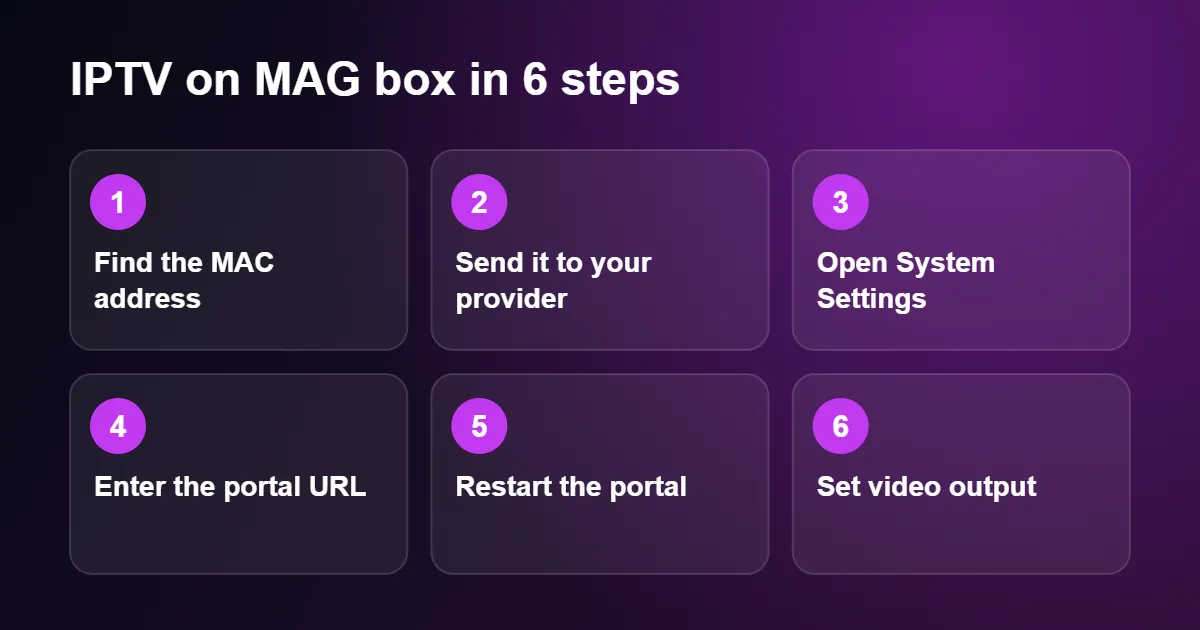
Step 1: Find the MAC address
Turn the box over. On the label underneath you will see a code beginning 00:1A:79 followed by three more pairs of characters. That is the MAC address. It is also printed on the original carton, and shown on screen under Settings › System Settings › Device Info.
Step 2: Send the MAC address to your provider
Send the full code exactly as printed, including the colons. A photo of the label is the safest way to avoid mixing up a zero with the letter O, or a B with an 8. Your provider registers the box and replies with the portal URL.
Step 3: Open System Settings
Connect the box to your television with an HDMI cable and plug in the power. When the first screen appears, press the SETUP (or SET) button on the remote, or select Settings and then System Settings.
Step 4: Enter the portal URL
Go to Servers › Portals. You will see fields for two portals.
- In Portal 1 name, type any label you like, for example the name of your provider.
- In Portal 1 URL, type the address exactly as it was sent, starting with http://.
Press the KB button on the remote to bring up the on-screen keyboard. Take your time: a single wrong character is the most common reason IPTV on MAG box fails to load. Press OK to save.
Step 5: Restart the portal
Press EXIT until you are back at the settings menu and choose Restart portal (on some models, Reload portal). The box reconnects, downloads the channel list and opens the main menu. The first load can take up to a minute.
Step 6: Set the video output
Return to System Settings and open Video. Set the video output mode to match your television. For UK viewing choose a 50 Hz option, such as 1080p-50, or 2160p-50 on a 4K model with a 4K television. UK broadcasts run at 50 frames per second, so a 50 Hz mode gives smoother motion than a 60 Hz one.
Settings Worth Knowing for IPTV on MAG Box
Network
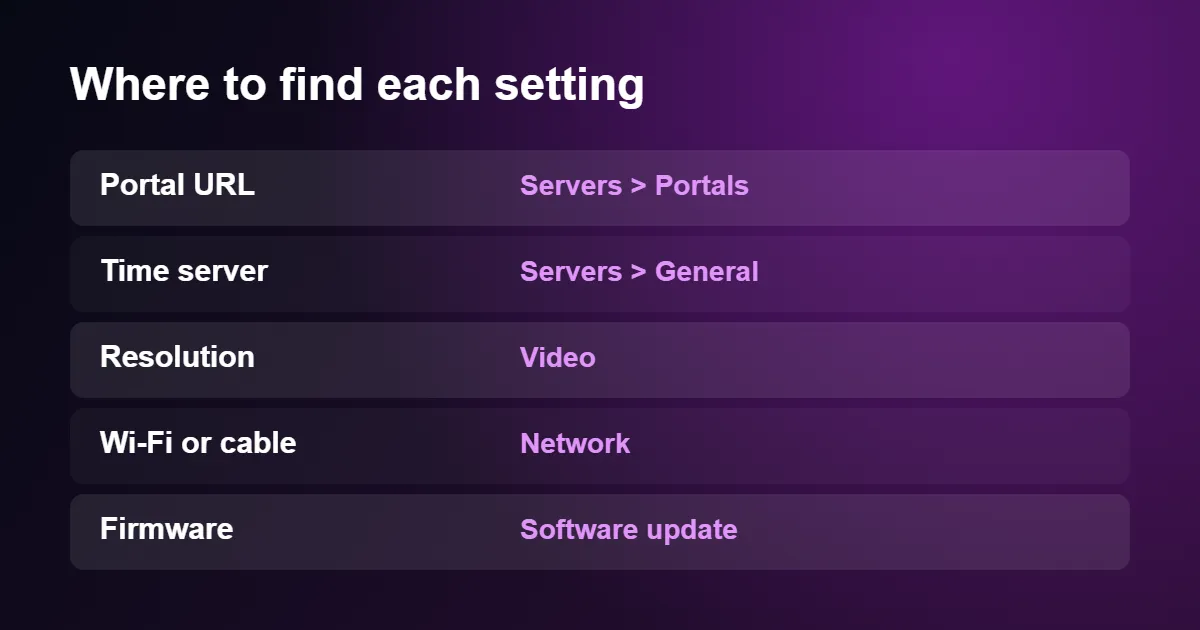
Under Network you choose between a wired connection and Wi-Fi. Use the Ethernet port if at all possible; MAG boxes are at their best on a cable. Models with a “w” in the name have Wi-Fi built in, and others accept a compatible USB Wi-Fi adapter.
Time server
Under Servers › General there is an NTP server field. If the clock or the TV guide shows the wrong time, enter pool.ntp.org here and set your time zone to London in the advanced settings.
Software update
The Software update screen installs new firmware from the manufacturer. Updating is sensible when the box feels slow or a portal refuses to load on old software. Do not unplug the box while an update is running.
Fixing Common Problems With IPTV on MAG Box
The screen stays on “Loading portal”
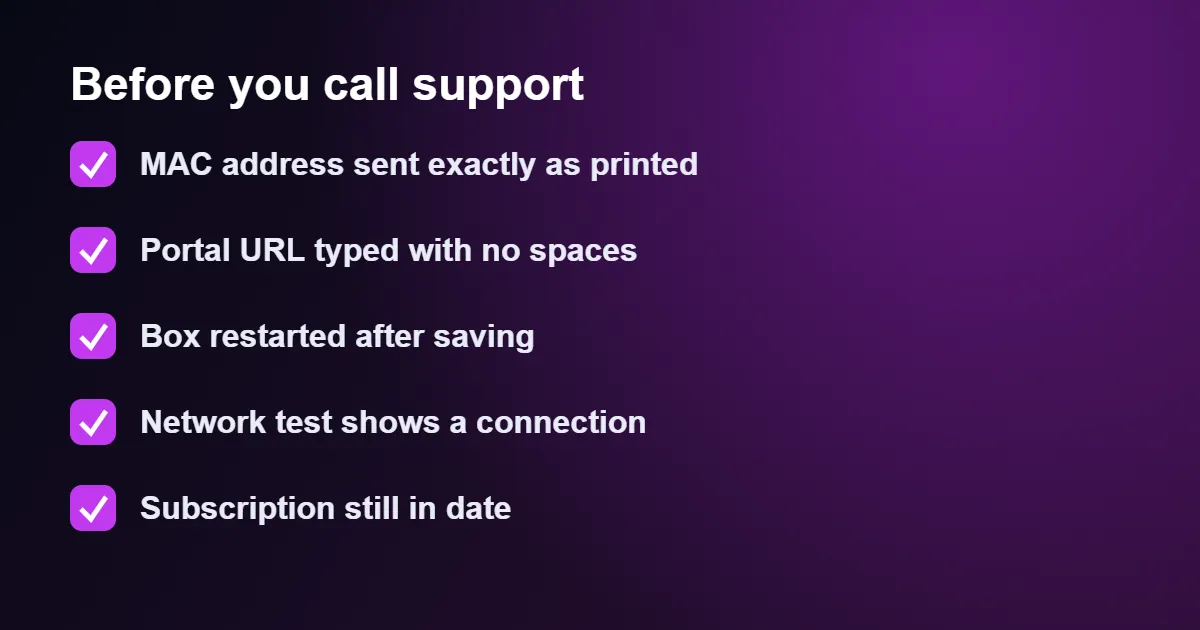
The box cannot reach the address. Check the portal URL character by character, then open Network and confirm the box has a connection. Restarting the router and the box together clears most remaining cases.
“Your STB is blocked” or “STB is not supported”
The portal answered, but it does not recognise your box. Either the MAC address was registered with a typing error, or the subscription has ended. Send your provider a photo of the label so they can compare.
“Page loading error”
This usually means the address is wrong or incomplete, often a missing http:// at the start or a missing /c/ at the end if your provider’s address includes one.
Channels open slowly or freeze
Try a cable instead of Wi-Fi first. If you are already wired, test your line using the advice in our guide to internet speed for IPTV, then follow the IPTV buffering fix checklist.
No picture after changing the resolution
You have chosen a mode your television cannot display. Restart the box while holding the MENU button to open the system recovery menu, where you can set the video mode back to a lower resolution.
Which Models Are Best for IPTV on MAG Box?
Most boxes sold in recent years work well. Older models such as the MAG 250 and 254 are limited to Full HD and may not receive new firmware. Newer Linux-based models in the 300, 400 and 500 series are faster, and several support 4K. The manufacturer lists current models and specifications on the Infomir website.
If you are buying a device today and have no strong preference, a streaming stick is cheaper and more flexible; compare with IPTV on Firestick or an Android TV box. A MAG box remains a good choice if you want something that behaves like a traditional set-top box, with a full remote and no apps to manage.
No MAG Box? Use an Emulator
Some people like the MAG interface but own an Android device. An app called an STB emulator imitates a MAG box: it shows a virtual MAC address, which you send to your provider, and accepts the same portal URL. The setup follows the same six steps, although performance depends on the device you run it on.
Remote Buttons for IPTV on MAG Box
Once the portal has loaded, almost everything is done from the remote. The layout is the same across models, and learning a handful of buttons makes IPTV on MAG Box feel as quick as a satellite receiver.
| Button | What it does in the standard portal |
|---|---|
| OK | Opens the channel list over the picture, or plays the highlighted channel |
| CH + and CH − | Next and previous channel |
| Yellow (F3) | Adds the highlighted channel to favourites, or removes it |
| Green (F2) | Sorts the list by number, by name or favourites only |
| Red (F1) | Changes the view between a plain list and a list with preview |
| Info | Shows the current and next programme |
| Back | Returns to the previous screen |
Some providers customise the portal they use for IPTV on MAG Box, so a button may behave a little differently on yours. The labels along the bottom of the screen always show what the four coloured buttons do on the page you are looking at.
Favourites and the TV Guide in the Portal
With IPTV on MAG Box, a full channel list can run to thousands of entries, and scrolling through it with a remote is nobody’s idea of fun. Spend a few minutes marking the channels you actually watch with the yellow button, then press the green button and choose favourites only. From then on the list shows just your own selection, in the order you added it, and the channel up and down buttons move through those channels alone.
The programme guide for IPTV on MAG Box is built into the same screen. Highlight a channel and press the right arrow or the EPG button to see its schedule for the day. On channels that offer catch-up, earlier programmes are marked with a small clock symbol and can be played from the start. If the guide is blank for every channel, wait a few minutes after the portal loads, because the schedule is downloaded in the background; if it stays blank, the time settings on the box are the usual cause.
Wi-Fi or Cable for IPTV on MAG Box
MAG boxes were designed around a network cable, and that is still how IPTV on MAG Box works best. Not every model even has Wi-Fi: on several older ones it is only present in versions with w1 or w2 in the name, and the rest need a compatible USB adapter. Before buying a dongle, check the manufacturer’s list for your exact model, because many ordinary adapters are not recognised.
If the router is in another room, there are better answers than a weak wireless signal. A pair of powerline adapters carries the connection through the mains wiring, and one node of a mesh Wi-Fi system placed near the television usually has an Ethernet socket on the back that the box can plug into. Either option gives IPTV on MAG Box the steady connection it expects, and both are simple to fit without drilling holes for a long cable.
Connecting a MAG Box to Your TV and Speakers
For IPTV on MAG Box, HDMI is the right choice for any modern television, and one cable carries both picture and sound. Use the socket on the television that you can reach easily and note its number, since that is the input you will select each time.
Older televisions without HDMI are not excluded. Many MAG models have an AV output, a small round socket that takes a cable ending in yellow, red and white plugs. The picture is standard definition only, but it is a practical way to bring a bedroom or kitchen set back into use. If you connect this way, set the video output in the system settings to PAL so that the picture is stable on a UK television.
For better sound, several models include an optical S/PDIF output that connects directly to a soundbar or amplifier. When the television is silent on certain channels, open the audio section of the system settings and change the HDMI audio option from pass-through to PCM, which makes the box decode surround sound itself and send plain stereo.
Parental Control on a MAG Box
The portal used for IPTV on MAG Box has a parental lock that hides adult categories behind a password. On most portals the default code is 0000, which every child with a search engine can find, so change it. Open the portal settings, choose parental control, enter the current code and then type a new one twice. Keep a note of it somewhere safe: the code is stored with your account, and if you forget it your provider will have to reset it for you.
Looking After Your MAG Box
A MAG box has no fan and relies on the air around it to stay cool. Give it open space, keep it off the top of a router or games console, and do not shut it in a closed cabinet. When IPTV on MAG Box freezes after an hour or two and recovers once the box has been off for a while, it is usually too warm.
Use the power adapter that was supplied with it. Adapters with the same plug but a different voltage can damage the box, and under-powered ones cause random restarts. When you need to restart, switch off at the wall, wait ten seconds and switch on again, rather than using standby on the remote; this reloads the software fully and fixes most temporary glitches with IPTV on MAG Box.
The standard remote uses infrared, so it needs a clear line of sight to the front of the box. If it becomes unreliable, replace the batteries first and then check that nothing is blocking the sensor. Replacement remotes are inexpensive and work as soon as the batteries are in, with no pairing required.
Resetting a MAG Box Safely
A reset is occasionally the quickest way to get IPTV on MAG Box working again on a box that has been set up for a different service or has confused settings. Before you start, write down the portal URL, because a reset to factory settings erases it along with the network and video options.
Open the system settings, choose the option to reset settings and confirm. The box restarts with a blank configuration, and you then repeat the portal and video steps from the setup section above. Your registration is not affected: the MAC address is fixed in the hardware and does not change, so there is nothing to send to your provider again. Leave the low-level recovery menu, which appears if the Menu button is held while the box powers on, well alone unless a technician asks you to use it.
MAG Box or a Player App on a Stick?
If you already own the hardware and IPTV on MAG Box is working well, there is no reason to change. If you are deciding what to buy, it helps to see how the two approaches differ.
| MAG box | Player app on a stick | |
|---|---|---|
| How you sign in | MAC address and portal URL | Username and password, or a link |
| Other apps | Very few on the classic models | The full app store |
| Changing channel | Very quick | Depends on the app |
| Using it away from home | Take the box with you | Sign in on any device |
In short, IPTV on MAG Box suits a household that wants a dedicated television box with a simple remote and nothing else to distract. A stick suits people who also want the big streaming services on the same device. Our list of the best IPTV player apps covers that second route.
IPTV on MAG Box: Quick Questions
Can I use one subscription on two MAG boxes?
Each subscription is tied to one MAC address. A second box needs its own registration, so ask your provider about an additional connection.
What happens if I replace my box?
Send the new MAC address to your provider and ask them to swap it. The portal URL normally stays the same.
Do I need a username and password?
Not on a MAG box. Those belong to the app-based login methods described in M3U vs Xtream Codes.
Does a MAG box come with channels?
No. The box is only hardware. Channels appear once a provider has registered your MAC address and you have entered their portal URL, so IPTV on MAG Box always needs a subscription as well.
Can I take my box to another house?
Yes. With IPTV on MAG Box the registration follows the box, not the address. Connect it to the internet at the new place, wait for the portal to load and it works as it did at home.
Do I need an aerial or a satellite dish?
Neither. IPTV on MAG Box arrives entirely over your broadband connection, so the only cables are power, network and HDMI.
Can I install other apps on a MAG box?
Not on the classic models, which run a closed system built for portals. A few newer Android-based models do have an app store, so check the specification if that matters to you.
What if I lose the remote?
Order a replacement for your model; they are widely sold and cost little. In the meantime a USB keyboard plugged into the box lets you move around the portal with the arrow and Enter keys.
Want to see it working first? Request a free 24-hour trial, send us your MAC address, and we will set up IPTV on MAG box with you step by step on WhatsApp.