
Setting up IPTV on Apple TV takes about ten minutes, and the result is one of the smoothest ways to watch: a fast processor, a proper remote and a clean interface. The one thing that surprises new users is that tvOS has no web browser and no way to install apps from outside the App Store, so the method is slightly different from a Firestick. This guide covers everything in five steps.
In This Guide
What You Need for IPTV on Apple TV
Three things: a compatible Apple TV, an IPTV player app from the App Store and the login details for your subscription. If you do not have a subscription yet, a free 24-hour trial gives you working details to follow along with.
Not every Apple TV can run apps. The model matters more here than on most devices.
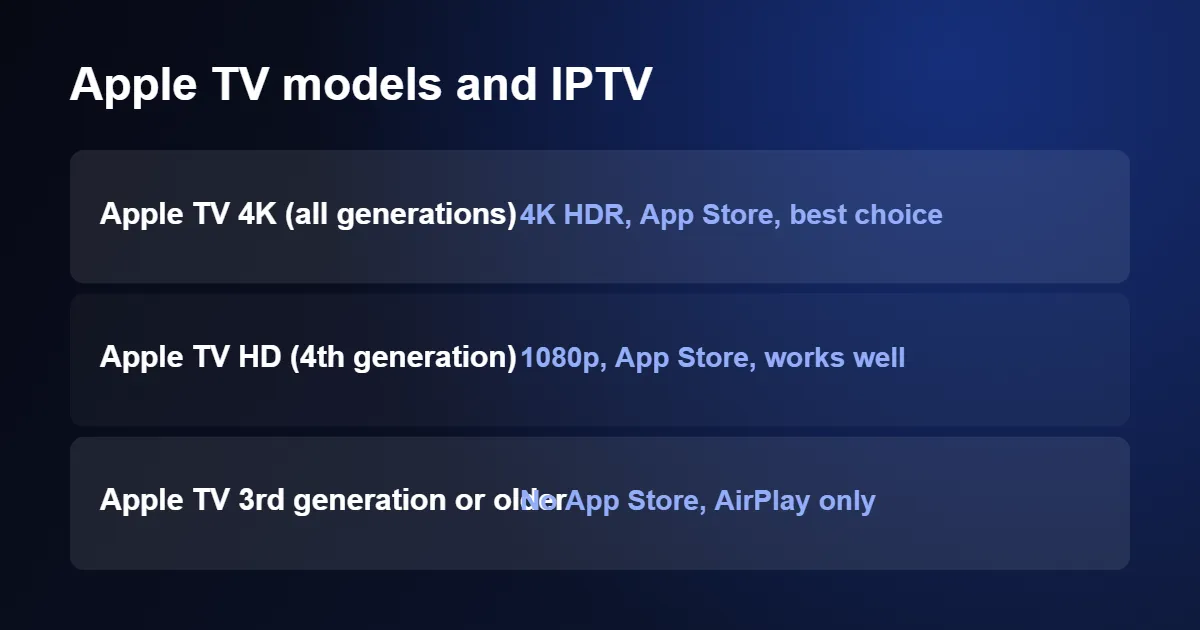
If you own a third-generation box or older, you cannot install a player. You can still watch by sending video from an iPhone with AirPlay; see our guide to IPTV on iPhone and iPad for that route.
How to Set Up IPTV on Apple TV in 5 Steps
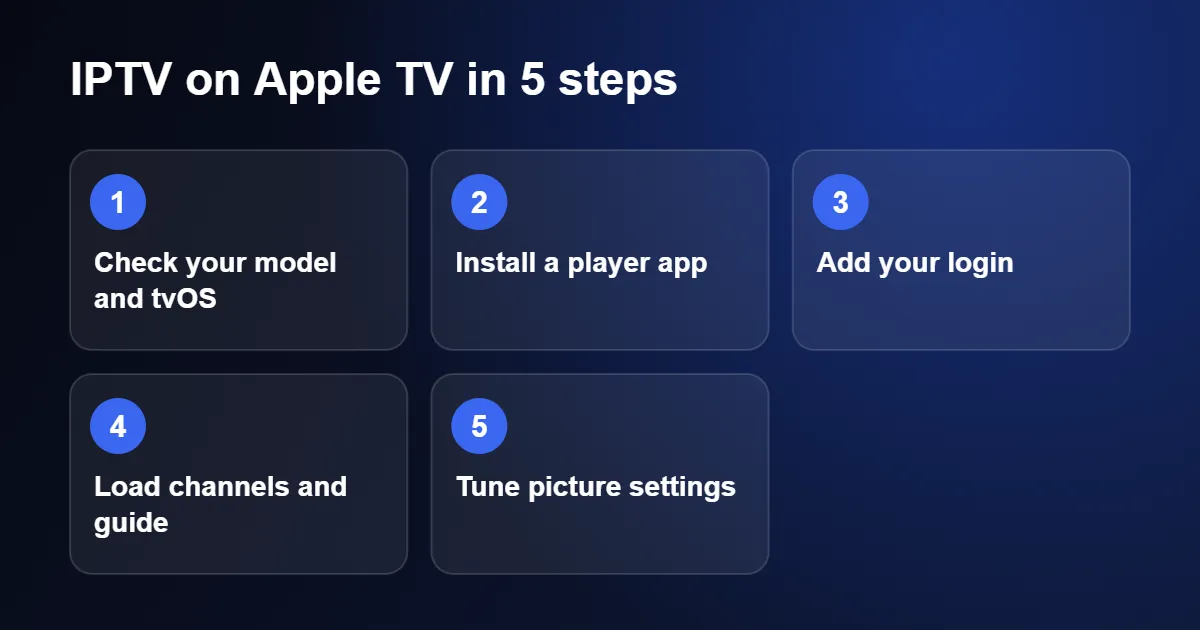
Step 1: Check your model and update tvOS
Open Settings › General › About to see your model. Then go to Settings › System › Software Updates and install anything waiting. Player apps are updated often and expect a recent version of tvOS.
Step 2: Install an IPTV player app
Open the App Store on the Apple TV, select the search icon and type the name of a player. These are the ones UK viewers use most on tvOS:
- iPlayTV: built only for Apple TV, with a guide that feels like a native Apple app. It is a paid app.
- GSE Smart IPTV: free to start, accepts every login type and has a long list of settings.
- Smarters Player Lite: the Apple version of IPTV Smarters, with the familiar Live TV, Films and Series layout.
- IPTVX: a polished player with a strong on-demand view; some features need a paid upgrade.
TiviMate, which is popular on Android, is not available for Apple devices. For a wider comparison see our round-up of the best IPTV player apps.
Step 3: Add your login details
Open the app and choose to add a playlist or provider. Most apps offer two options: Xtream Codes (a server address, username and password) or an M3U link. Choose Xtream Codes when it is offered, because three short fields are far easier to enter with a remote. The difference is explained in M3U vs Xtream Codes.
Typing on a television is slow, so use this shortcut: when the text field opens, your iPhone shows a notification offering its keyboard. Tap it and you can paste the details straight from WhatsApp or email. Both devices need to be on the same Wi-Fi network and signed in to the same Apple Account.
Step 4: Load your channels and TV guide
Save the playlist and wait while the app downloads the channel list. A large line-up can take a minute or two the first time. If the app asks for a separate guide address (often called EPG or XMLTV) and you logged in with an M3U link, add the guide link from your provider as well. With Xtream Codes the guide normally loads automatically.
Step 5: Tune the picture settings
This is the step most guides to IPTV on Apple TV leave out, and it makes a visible difference. Go to Settings › Video and Audio.
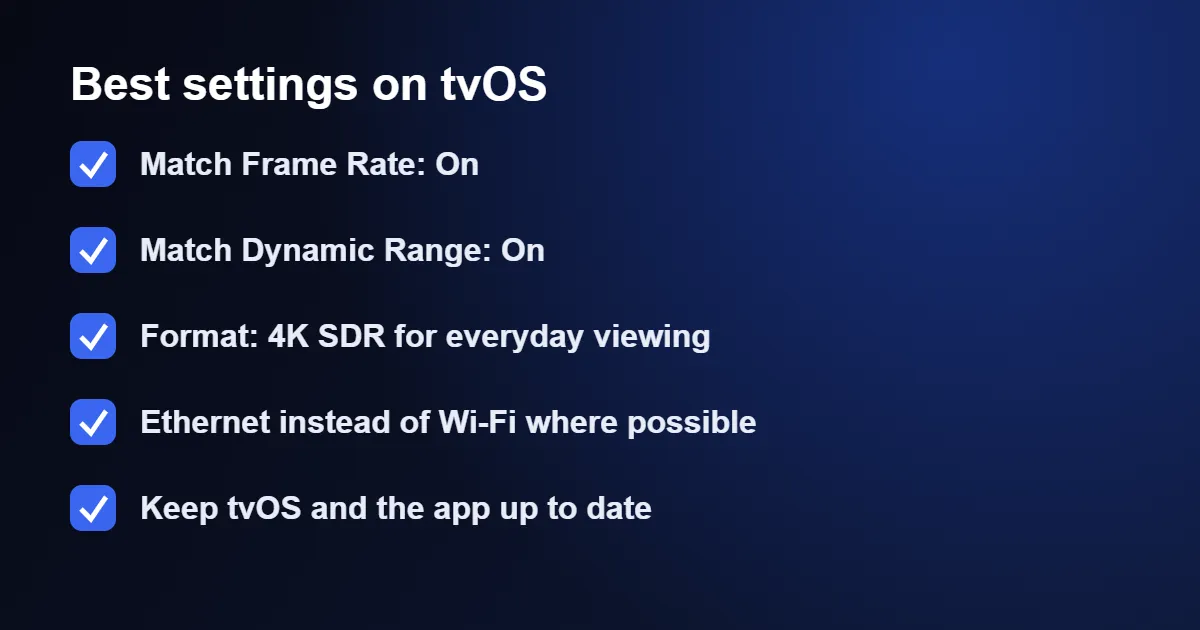
Match Frame Rate matters most for live television. UK broadcasts run at 50 frames per second, while the Apple TV menu defaults to 60. With matching switched on, the box changes to the correct rate and removes the slight judder you would otherwise see on scrolling text and fast sport.
Setting the format to 4K SDR with Match Dynamic Range on means HDR is used only when the programme is really in HDR, so ordinary channels are not artificially brightened.
Wi-Fi or Ethernet for IPTV on Apple TV?
Apple TV has excellent Wi-Fi, but a cable is still more consistent for live channels. The Apple TV HD and most Apple TV 4K models have an Ethernet port on the back. The exception is the lower-priced Wi-Fi-only version of the third-generation Apple TV 4K, so check the rear panel.
On Wi-Fi, connect to the 5 GHz band. For Full HD you need about 15 Mbps and for 4K about 25 Mbps; our article on internet speed for IPTV shows how to test what actually reaches the box.
Fixing Common Problems With IPTV on Apple TV
The app says the playlist is invalid
Nine times out of ten this is a typing error. Check for a missing http:// at the start of the server address, a space at the end of the username, or a capital letter where there should not be one. Pasting from your iPhone avoids all three.
Channels load, then stutter
Inside the app, look for a player or decoder setting and switch between the options offered (for example the built-in Apple player and an alternative engine). If every channel is affected, work through our IPTV buffering fix checklist.
No sound, or sound out of sync
Go to Settings › Video and Audio › Audio Format and turn Change Format on, then choose stereo. Some soundbars struggle with the audio format used by certain channels, and this forces a format they all understand.
The playlist disappeared
If iCloud sync is switched off in the app, deleting and reinstalling it removes your saved login. Keep your details somewhere safe so you can add them again in a minute.
Useful Siri Remote Shortcuts
- Press the TV button twice to open the app switcher, then swipe up on a frozen app to close it.
- Hold the TV button to open Control Centre and put the box to sleep.
- In most players, click left or right on the clickpad to skip through on-demand content, and swipe down for subtitles and audio tracks.
- Ask Siri to “open” your player by name to jump straight in.
Apple TV vs Firestick for IPTV
Both work well, and IPTV on Apple TV has some clear advantages. The Apple TV costs more, but it is noticeably faster, has no adverts on the home screen and handles frame rates correctly without extra apps. The Firestick is cheaper and offers a wider choice of players, including ones installed from outside the store. If you are choosing for a second room, read how to install IPTV on Firestick and compare.
Typing Your Login for IPTV on Apple TV With an iPhone
Entering a long server address with the Siri Remote is slow, and one wrong character is enough for the login to fail. If you own an iPhone or iPad, you can avoid the on-screen keyboard completely.
When a text box is selected on the television, a notification appears on any iPhone or iPad that is nearby and signed in to the same Apple Account. Tap it and the phone keyboard opens. Because it is a normal keyboard, you can copy the address from the message your provider sent and paste it in one go, then do the same for the username and password. If the notification does not appear, open Control Centre on the phone and tap the remote icon instead.
Some players offer a second shortcut. They display a short web address on the television, which you open in the browser on your phone or laptop to type or paste the details on a simple form. Both devices need to be on the same Wi-Fi network for this to work. Either method takes the frustration out of setting up IPTV on Apple TV, and they are just as useful later if you ever need to edit the playlist.
Organising the Home Screen for IPTV on Apple TV
By default the TV button on the remote opens Apple’s own TV app rather than your apps. If the player is what you use most, change this under Settings › Remotes and Devices › TV Button and select Home Screen. One press then always takes you to the grid of apps.
Next, move the player to the top row. Highlight its icon, press and hold the centre of the clickpad until the icon starts to jiggle, slide it to the first position and press again to drop it. Apps in the top row can show shortcuts along the top of the screen, and some players use that space for your recent channels. With these two changes, starting IPTV on Apple TV takes a single button press and one click.
Sound Options for IPTV on Apple TV
With IPTV on Apple TV you have an unusual amount of choice about where the sound goes. Press and hold the TV button to open Control Centre and choose the audio icon; AirPods that belong to your Apple Account appear there automatically, which is ideal when someone else in the room is asleep. Two pairs can be connected at once, each with its own volume.
If you have HomePod speakers, they can replace the television speakers permanently. Open Settings › Video and Audio › Audio Output and pick the HomePod, or a stereo pair, as the default. On the same page, Reduce Loud Sounds narrows the gap between quiet dialogue and loud adverts or crowd noise, which makes late-evening viewing far more comfortable without constant reaching for the remote.
Channels differ a good deal in how loud they are, because each broadcaster sets its own level. That is normal with IPTV on Apple TV and is not a fault with the box or the service; Reduce Loud Sounds is the simplest way to even it out.
Sleep, Screensaver and TV Control Settings
Apple TV goes to sleep after a period without input, and with IPTV on Apple TV this can catch you out in two ways. While a channel is playing, the box stays awake. Pause the picture or leave the channel list open, however, and the screensaver starts after a few minutes, followed by sleep. If you often leave a channel paused, lengthen the timer under Settings › General › Sleep After.
The same area of the settings controls how the box works with your television. Under Settings › Remotes and Devices, switch on Control TVs and Receivers so that waking the Apple TV also turns the television on and selects the correct input, and so that the volume buttons on the Siri Remote adjust the television or soundbar. If the volume buttons do nothing, choose Volume Control on that page and select the option to learn a new device, then follow the prompts with your television remote.
Restrictions for IPTV on Apple TV in a Family Home
Two sets of controls keep a shared television suitable for children. The first is the parental PIN inside the player, which locks the categories you choose. The second is built into tvOS under Settings › General › Restrictions. Switch restrictions on, set a four-digit passcode and you can then require the passcode for purchases, limit apps by age rating and prevent apps being deleted or installed.
Use a different code for each. A child who works out the player PIN should not automatically be able to change the settings of the whole box.
Using an iPhone or iPad Alongside Apple TV
For IPTV on Apple TV, your phone is more than a keyboard for the box. If a player on the Apple TV misbehaves after an update, you can open a player on your iPhone and send the channel to the television with AirPlay while you wait for a fix. Our guide to IPTV on iPhone explains how to set that up.
For AirPlay to work, open Settings › AirPlay and HomeKit on the Apple TV and check who is allowed to connect. Anyone on the Same Network is the practical choice at home. Visitors can then show something on the television without needing your passwords, and you can require a one-time code on screen if you prefer a little more control.
Updates and App Storage
Keep both tvOS and your apps updating automatically. System updates are under Settings › System › Software Updates, and app updates under Settings › Apps. Player developers normally release a compatible version within days of a new tvOS, so an out-of-date app is the first thing to check when IPTV on Apple TV stops working after a system update.
On the same Apps page, switch off Offload Unused Apps. It is designed to free space by removing apps you have not opened recently, and a player you only use during the football season is exactly the kind of app it removes. Storage is rarely tight in any case, because live channels are streamed, not saved.
Travelling With an Apple TV
The box is small enough to take on holiday, so IPTV on Apple TV can travel with you, and it needs only its power cable, an HDMI cable and the remote. The usual obstacle is hotel Wi-Fi that asks for a room number or an email address on a web page, which a television box cannot display. Recent versions of tvOS solve this by passing the sign-in page to your iPhone: choose the network on the Apple TV, and complete the form on the phone when prompted.
Where that fails, connect the Apple TV to the personal hotspot on your phone, keeping an eye on your data allowance. Hotel connections are often slow in the evening, so choose the HD version of a channel rather than 4K.
Settings Summary for IPTV on Apple TV
| Setting | Where to find it | Suggested choice |
|---|---|---|
| TV Button | Remotes and Devices | Home Screen |
| Sleep After | General | One hour or longer |
| Reduce Loud Sounds | Video and Audio | On for evening viewing |
| Control TVs and Receivers | Remotes and Devices | On |
| Offload Unused Apps | Apps | Off |
IPTV on Apple TV: Quick Questions
Is there an official app for IPTV on Apple TV?
No single app is required. A player app is only a window onto your subscription, so any of the players above will work with the same login.
Can I use the same subscription on my iPhone?
You can install it on both. Whether you can watch on two screens at the same moment depends on your plan, so ask us before you order if that matters to you.
Does IPTV on Apple TV support 4K?
Yes, on any Apple TV 4K with a 4K television and a plan that includes 4K channels. Apple’s own Apple TV support pages explain how to confirm your television is receiving a 4K signal.
Does IPTV on Apple TV work on the older Apple TV HD?
Yes. The Apple TV HD runs current players and plays Full HD channels well. It cannot output 4K, so choose the HD version where a channel is listed twice.
Can I install apps from outside the App Store?
Not in any practical way. tvOS only accepts apps from the App Store, which is why IPTV on Apple TV always starts with choosing a player there.
How much storage do I need?
Very little. Player apps are small and nothing is downloaded while you watch, so the smallest storage size is more than enough for IPTV on Apple TV.
Can I connect a keyboard?
Yes. Put a Bluetooth keyboard into pairing mode and add it under Settings, Remotes and Devices, Bluetooth. It is handy for typing logins and for searching long channel lists.
Can Siri change the channel?
No. Siri searches Apple’s own catalogue and the large streaming services, not the list inside a player. Use the search function within the player to jump to a channel by name.
Ready to try it? Choose a UK IPTV subscription or request a trial, tell us you are using IPTV on Apple TV, and we will send the login in the format your app prefers.