IPTV on iPhone is the quickest setup there is, because you can copy your login from a message and paste it straight into the app. Within five minutes you can be watching on the sofa, in the garden or on the train. The same steps apply to an iPad, which makes an excellent second screen for the kitchen or a child’s bedroom.
In This Guide
What You Need for IPTV on iPhone
An iPhone or iPad with a recent version of iOS or iPadOS, a player app from the App Store and your subscription login. If you would like to test before buying, a free 24-hour trial works on Apple devices in exactly the same way.
Apple does not allow apps to be installed from outside the App Store in the UK, so every player you use will come from there. That keeps things simple and safe.
How to Set Up IPTV on iPhone and iPad in 5 Steps
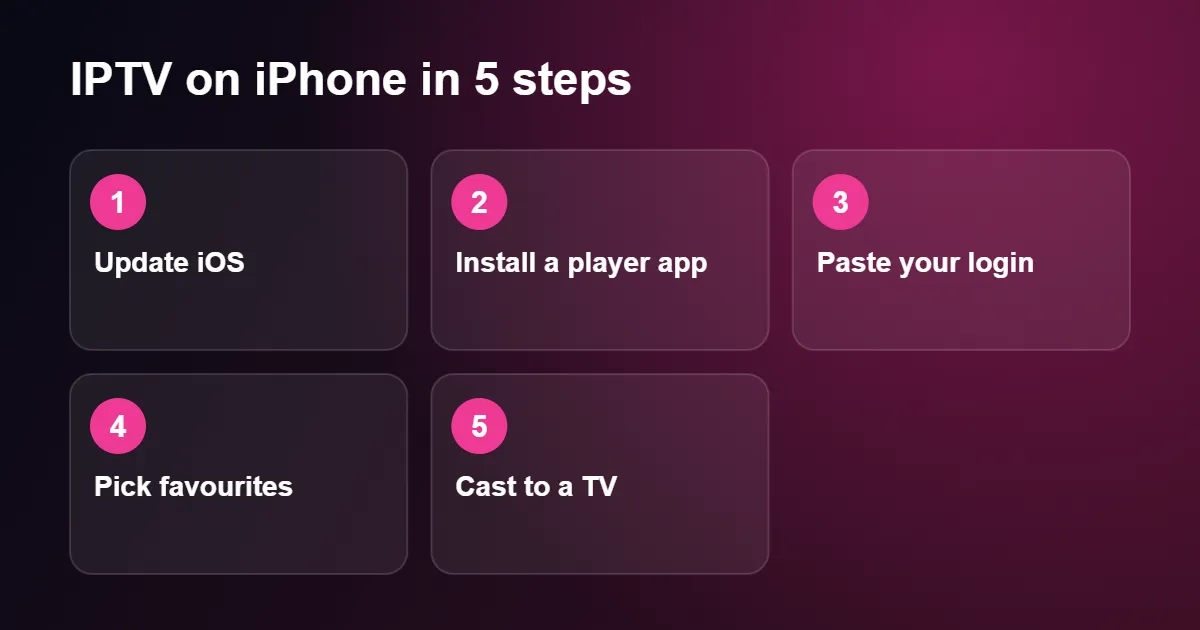
Step 1: Update iOS
Open Settings › General › Software Update. Player apps are updated regularly and the newest versions expect a current system.
Step 2: Install a player app
Open the App Store and search for one of these:
- Smarters Player Lite: the iOS version of IPTV Smarters. Clear sections for live channels, films and series.
- GSE Smart IPTV: accepts every login format and can cast to a Chromecast as well as AirPlay.
- IPTVX: a polished design that syncs between iPhone, iPad and Apple TV.
- VLC for Mobile: free and open source. It opens an M3U link from the Network tab, without a programme guide.
Our comparison of the best IPTV player apps has more detail on each.
Step 3: Paste your login
Open the message from your provider, press and hold on the username, and tap Copy. Switch to the player, choose to add a playlist with Xtream Codes, and paste each item into its field: server address, username and password.
If you were sent a single long M3U link instead, choose the M3U option and paste that. The two methods are compared in M3U vs Xtream Codes.
Step 4: Pick your favourites
A full channel list is long to scroll on a small screen. Press and hold a channel (or tap the star) to add it to Favourites, and you will have a short list of the ones you actually watch.
Step 5: Send it to a television
Start a channel, tap the screen and select the AirPlay icon, a rectangle with a triangle beneath it. Choose your Apple TV or AirPlay-compatible television and the picture moves to the big screen while your phone becomes the remote.
How to Watch IPTV on iPhone on a TV
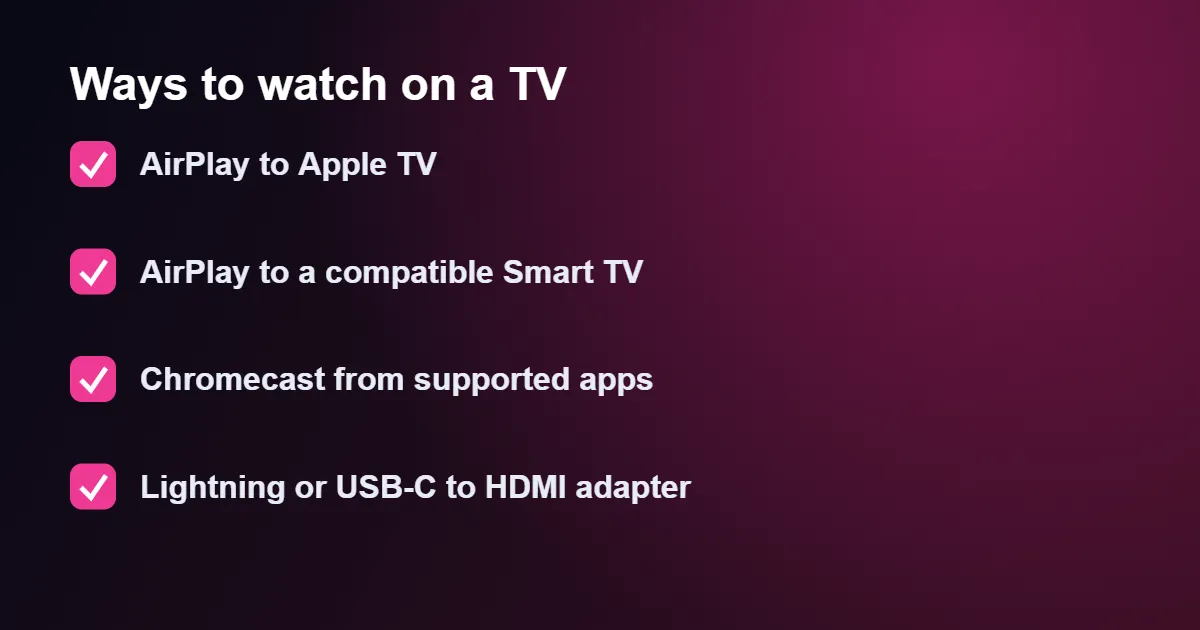
AirPlay works with every Apple TV and with many recent televisions from Samsung, LG, Sony and others. Both devices must be on the same Wi-Fi network.
Chromecast is supported by some players, including GSE Smart IPTV. Tap the cast icon inside the app.
A cable is the most reliable option in a hotel or a house with weak Wi-Fi. Use a Lightning Digital AV Adapter on older iPhones, or a USB-C to HDMI adapter on the iPhone 15 and later and on recent iPads.
If you own an Apple TV, installing a player on the box itself gives a better result than casting. See IPTV on Apple TV.
Features That Improve IPTV on iPhone
Picture in Picture
In players that support it, swipe up to go home while a channel is playing and the video shrinks to a floating window. You can reply to a message without missing the match. Check that Settings › General › Picture in Picture is switched on.
Split View on iPad
Tap the three dots at the top of the screen and choose Split View to put the player on one side and a browser or notes on the other.
Orientation lock
If the picture keeps turning when you lie down, open Control Centre and tap the padlock icon while the phone is held sideways.
How Much Mobile Data Does IPTV on iPhone Use?
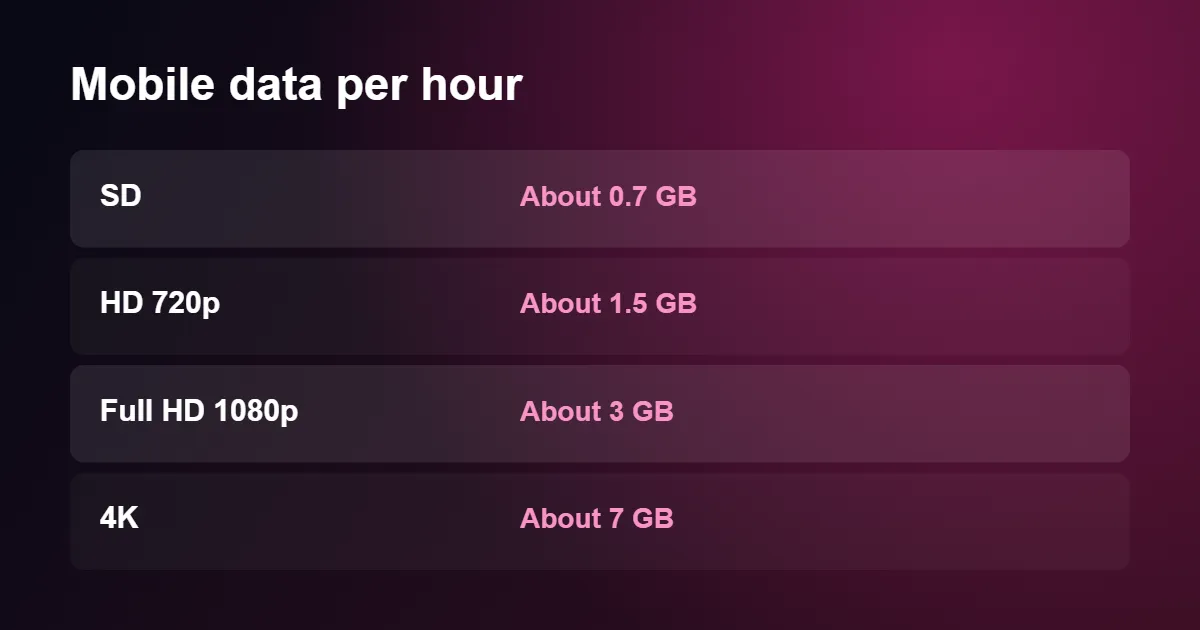
On Wi-Fi this does not matter, but on 4G or 5G it adds up quickly. A football match in Full HD can use around 6 GB.
- In the player’s settings, choose a lower-quality version of a channel when one is offered (often labelled SD or HD rather than FHD).
- Turn on Low Data Mode under Settings › Mobile Data › Mobile Data Options when you are close to your allowance.
- Switch off Wi-Fi Assist at the bottom of the Mobile Data screen, so the phone does not silently use mobile data when the Wi-Fi is weak.
For what your connection needs at each quality level, see internet speed for IPTV.
Fixing Common Problems With IPTV on iPhone
“Login failed” or “Invalid details”
iOS sometimes adds a space after pasted text, or changes the first letter to a capital. Tap into each field and check the beginning and end. The server address should start with http://.
The video stops when the screen locks
That is normal behaviour. To keep watching, leave the player open, or set Settings › Display & Brightness › Auto-Lock to a longer time.
Works on Wi-Fi but not on mobile data
Open Settings › Mobile Data, scroll to the player and make sure its switch is on. Some mobile networks also apply content filters by default, which you can change in your account with the network.
Stuttering at home
Stand near the router and test again. If that fixes it, the cause is Wi-Fi coverage rather than the service. Our IPTV buffering fix guide covers the options.
AirPlay shows a black screen
Restart both devices and check that they are on the same network, not one on the main Wi-Fi and one on a guest network. Some players offer a setting to switch the video engine, which also resolves this.
Choosing a Player App for IPTV on iPhone
The App Store lists dozens of IPTV players, and they come and go more often than apps in most other categories. Rather than relying on one name, it helps to know what separates a good player from a frustrating one, so that you can judge any app in a minute or two before you install it.
| Feature | Why it matters |
|---|---|
| Xtream Codes login | Loads channels, the TV guide and films in one step instead of pasting a long link |
| Recent update date | An app updated in the last few months is far more likely to work with the current iOS |
| AirPlay and Chromecast buttons | Lets you send a channel to a television without mirroring the whole screen |
| Favourites and search | Essential once your list runs to thousands of channels |
| Clear pricing | A one-off unlock is usually better value than a weekly subscription for the app itself |
Read the most recent reviews rather than the overall star rating, because a player that worked well two years ago may have been abandoned since. Be cautious with apps that push a weekly subscription on the first screen; the player is only a tool, and a fair price for one is a small one-off payment or nothing at all. If you want named suggestions, our round-up of the best IPTV player apps lists the ones that work well for IPTV on iPhone and iPad.
For IPTV on iPhone it is also sensible to install two players. They take up very little space, they use the same login, and if one of them misbehaves after an iOS update you can carry on watching in the other while the developer catches up.
Permission Prompts You Will See With IPTV on iPhone
The first time you open a player, iOS asks a few questions on its behalf. They appear once, and the answers affect how well the app works, so it is worth knowing what each one means.
- Local Network. Tap Allow. The player needs this to find an Apple TV, Chromecast or smart TV on your Wi-Fi. If you refuse, the cast button will not list any devices.
- Allow Tracking. Choose Ask App Not to Track. It makes no difference to playback and simply limits advertising data.
- Notifications. Optional. Most players only use them for promotions, so Don’t Allow is a reasonable choice.
- Bluetooth. Only needed by apps that connect to certain speakers or casting devices directly; your AirPods work either way.
If you tapped the wrong answer, nothing is lost. Open Settings, scroll down to the name of the player and switch the permission on or off there. Changing Local Network in particular fixes most cases of a television that refuses to appear in the casting list.
Network Settings That Affect IPTV on iPhone
iOS has several data-saving features that are helpful day to day and unhelpful for live television. When IPTV on iPhone looks soft or pauses for no obvious reason, one of these three is often responsible.
Low Data Mode
Low Data Mode tells apps to use less data, and some players respond by choosing a lower picture quality or by pausing in the background. For Wi-Fi, open Settings › Wi-Fi, tap the information button beside your network and switch Low Data Mode off. For your mobile connection, look under Settings › Mobile Data › Mobile Data Options.
Low Power Mode
When the battery icon turns yellow, Low Power Mode is on. It reduces background activity and can dim the screen sooner, which is fine for messages and poor for a ninety-minute match. Plug the phone in or switch the mode off in Settings › Battery while you watch.
Wi-Fi Assist
Wi-Fi Assist quietly moves your phone to mobile data whenever the Wi-Fi signal is weak. That keeps the picture going at the far end of the garden, but it can also use a surprising amount of your allowance without telling you. The switch is at the very bottom of Settings › Mobile Data; turn it off if your plan is not unlimited.
Sound: AirPods, Bluetooth Speakers and Lip-Sync
Sound is half the experience of IPTV on iPhone, and the phone gives you more choices than a television does. To change where the audio goes while a channel is playing, open Control Centre, press and hold the playback tile and tap the AirPlay audio icon; every pair of headphones and every speaker in range is listed there.
AirPods and other Apple or Beats headphones stay in step with the picture automatically. Cheaper Bluetooth speakers sometimes add a short delay, which shows up as lips moving slightly ahead of the words. If your player has an audio delay or audio sync setting, nudge it until speech lines up; if it does not, a wired connection or an AirPlay speaker avoids the problem altogether.
Two smaller points are worth knowing. The ring and silent switch does not mute video, so check the volume buttons before you start a channel on the train. And CarPlay will not show video from any app, so IPTV on iPhone is limited to audio through the car speakers while the picture stays on the phone, which is strictly for passengers.
Keeping IPTV on iPhone Child-Friendly
A subscription with tens of thousands of channels will include some you would rather a child did not stumble on. Two layers of control work well together on an iPhone or iPad.
The first is inside the player. Most apps have a parental control setting that hides or locks chosen categories behind a PIN. Set this up before you hand the device over, and pick a PIN that is different from the device passcode.
The second is built into iOS. Under Settings › Screen Time you can set a daily time limit for the player app, block it entirely after bedtime with Downtime, and stop new apps being installed without your approval. On an iPad used by a young child, Guided Access is even simpler: switch it on under Settings › Accessibility › Guided Access, open the channel you have chosen, then triple-click the top or side button to lock the iPad to that one app until you enter your passcode. Apple’s iPhone User Guide describes each of these settings in full.
Stopping Interruptions During a Programme
A phone is the only screen in the house that rings in the middle of a film. An incoming call pauses the stream, and a run of message banners across the top of the picture is almost as annoying. For IPTV on iPhone, a Focus mode solves both.
Open Settings › Focus, create a new Focus and name it something like TV. Allow calls only from the people who really need to reach you, silence every other notification, and add the Focus to Control Centre so that it is one tap away. You can even have it switch on automatically whenever you open the player: choose Add Schedule, then App, and select your IPTV app.
On an iPad that mostly sits on a stand in the kitchen or bedroom, it is simpler still to sign out of Messages and FaceTime on that device, so that it behaves like a small television rather than a second phone.
Storage, Updates and Reinstalling the App
The player apps used for IPTV on iPhone are small, but they build up cached guide data and artwork over time. If a player becomes sluggish, look for a clear cache option in its settings first. iOS has no general button for this, so when an app offers none the only way to empty the cache is to delete the app and install it again.
Before you do that, make sure your login is saved somewhere outside the player. Deleting an app removes the playlist stored inside it, and typing a long server address from memory is not realistic. Keep the details in the Notes app or a password manager, or simply keep the original message from your provider.
One iOS feature deserves a mention here. Offload Unused Apps, found under Settings › App Store, removes apps you have not opened for a while to free up space but keeps their data, so a player you use only on holiday may show a small cloud icon next to its name. Tap it once and it downloads again with your playlist intact. Leave automatic app updates switched on as well: player updates are usually released within days of a major iOS version, and they are the normal fix when IPTV on iPhone stops working straight after an update.
IPTV on iPhone: Quick Questions
Does it work abroad?
Yes, wherever you have a good connection. Hotel Wi-Fi is often slow, so a lower quality setting helps. Check roaming charges before using mobile data.
Will it drain my battery?
Video uses more power than most tasks. Lowering screen brightness makes the biggest difference, and Low Power Mode helps on long journeys.
Can I use the same login on my iPad and my TV?
You can install it on each. Watching on more than one at the same moment depends on the plan you choose.
Do I need to jailbreak my device for IPTV on iPhone?
No. Every player you need is in the App Store, and IPTV on iPhone works on a completely standard device. Jailbreaking weakens the security of the phone and brings no benefit for streaming.
Is 5G fast enough for IPTV on iPhone?
Easily. Even an average 5G or good 4G signal is quicker than an HD or 4K channel requires. The limit is your data allowance rather than speed, so check whether your plan is truly unlimited before watching for hours away from Wi-Fi.
Can I download programmes to watch offline?
Live channels cannot be saved, because they are streamed as they are broadcast. IPTV on iPhone needs a connection the whole time you are watching, so for a flight, plan on the aircraft Wi-Fi or other entertainment.
Why has my player app disappeared from the App Store?
Apps are sometimes renamed or withdrawn by their developers. A copy already installed on your phone normally keeps working, and because your login is not tied to one app, you can enter the same details in a different player at any time.
Does IPTV on iPhone work on an older model?
Any iPhone or iPad that still receives iOS updates plays HD channels comfortably. Very old devices that are stuck on an earlier iOS may not be able to install current players, and they can struggle with 4K streams, so choose the HD version of a channel on those.
To get started, pick a UK IPTV subscription or ask for a trial. We send your login on WhatsApp, so setting up IPTV on iPhone is a simple copy and paste.